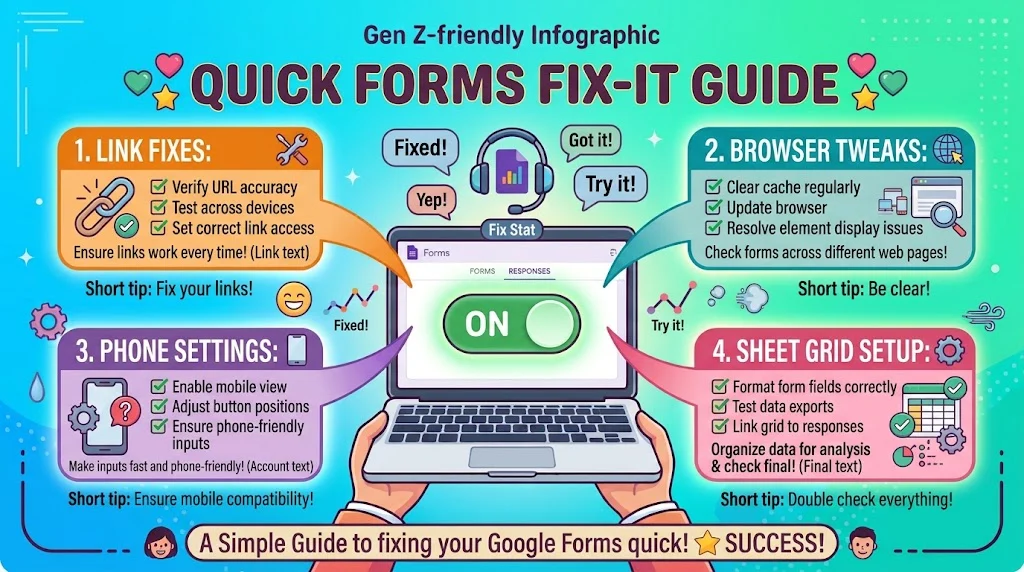
Most of the time, your form is not broken. The Accepting Responses toggle got switched off, the response limit was hit, or the link is restricted. Check the Responses tab first, then republish and send a fresh link.
You share the form, sit back, and wait for answers. Then someone messages you saying it will not submit. Panic sets in, and suddenly the whole project feels stuck. The Google Form not accepting responses issue is one of the most common complaints out there, and the fix is usually sitting in a toggle you forgot about.
This matters because a closed form means lost data, confused respondents, and a lot of apologetic emails. Whether you are collecting RSVPs for a party, quiz answers from students, or feedback from clients, every minute the form stays down costs you.
The good news is that most of these problems have simple, fast fixes. You do not need to rebuild anything. You just need the right checklist and a little patience. Below is everything you need, sorted by the exact situation you are dealing with.
Quick Fixes
- Turn the Accepting Responses toggle back on.
Example: Use when the form suddenly stops collecting answers out of nowhere.
Meaning: This single switch is the number one reason forms go silent. - Check if you hit the response limit.
Example: Use when a popular form stops working after a few hundred entries.
Meaning: Google caps responses based on your linked Sheet, and the limit is easy to miss. - Open the form in an incognito window.
Example: Use when only some people report the form failing.
Meaning: Rules out cache, cookies, and account conflicts in seconds. - Republish the form and copy a fresh link.
Example: Use when the old link was edited or shortened somewhere along the way.
Meaning: Resets the live version and gives you a clean URL to share. - Confirm the form is not sitting in the trash.
Example: Use when a teammate deleted the form while reorganizing Drive.
Meaning: Trashed forms stop accepting responses instantly. - Remove any automatic close date.
Example: Use when the form worked yesterday and died this morning.
Meaning: A forgotten deadline is a sneaky reason submissions stop. - Turn off Limit to 1 response if you need repeat entries.
Example: Use when people say they already filled it in and cannot submit again.
Meaning: That setting blocks second submissions by design. - Sign out of every Google account except one.
Example: Use when the respondent has personal and work accounts open.
Meaning: Multiple accounts confuse the form about who is submitting. - Clear cache and cookies, then reload.
Example: Use when the submit button spins forever with no error.
Meaning: Stale browser data can break form scripts. - Disable extensions and try another browser.
Example: Use when the form works on your phone but not your laptop.
Meaning: Ad blockers and privacy extensions often block Google scripts. - Check that the Responses tab is linked to a Sheet.
Example: Use when the form submits but no rows appear anywhere.
Meaning: Unlinked or broken destinations make it look like nothing is coming in. - Switch from Wi-Fi to mobile data and retry.
Example: Use when submissions fail only on one network.
Meaning: Network filters and school Wi-Fi often block Google services.
Settings And Toggle Fixes
- Set Accepting Responses to on and save.
Example: Use after a form was closed for editing.
Meaning: Confirms the form is live and open to entries. - Remove the Limit to 1 response checkbox.
Example: Use when you want multiple submissions from the same person.
Meaning: Stops Google from rejecting repeat entries. - Turn off Collect email addresses if it is not required.
Example: Use when respondents are on personal accounts and getting blocked.
Meaning: Email collection forces a sign in that many users cannot complete. - Disable the sign in requirement when possible.
Example: Use for public surveys and event RSVPs.
Meaning: Removing the login wall lets anyone submit. - Check every required question for response validation.
Example: Use when people say the submit button will not click.
Meaning: Hidden validation rules silently block submission. - Review section logic and skip patterns.
Example: Use when users get stuck in a loop or jump past the end.
Meaning: Broken branching can send people to a dead end. - Turn off shuffle question order temporarily.
Example: Use when testing whether the form behaves differently each time.
Meaning: Shuffling can expose logic errors that are hard to spot. - Reset the confirmation message.
Example: Use when people submit but think it failed.
Meaning: A blank or confusing confirmation reads like an error. - Remove the close date and time.
Example: Use when a deadline passed without anyone noticing.
Meaning: Google quietly stops accepting responses when the clock runs out. - Uncheck Require sign in for file uploads only if allowed.
Example: Use when uploads fail for external respondents.
Meaning: File uploads always need a Google account, so warn people upfront. - Turn off locked mode in quizzes.
Example: Use when students on phones cannot open the form.
Meaning: Locked mode only works on managed Chromebooks and blocks everything else. - Save and republish after every settings change.
Example: Use when changes seem to have no effect.
Meaning: Unsaved edits do not apply to the live form.
Sharing And Permission Fixes
- Set sharing to Anyone with the link.
Example: Use when only your organization can open the form.
Meaning: Restricted sharing blocks every outside respondent. - Send the published form link, not the editor link.
Example: Use when people land on a page asking for edit access.
Meaning: The editor URL will never accept responses. - Check who owns the form before blaming the link.
Example: Use when a form was copied from a teammate’s Drive.
Meaning: Ownership affects whether sharing and responses work. - Move the form to a shared drive if your team manages it.
Example: Use when the original owner leaves the company.
Meaning: Shared drives prevent access loss when accounts change. - Give respondents view access, not edit access.
Example: Use when people accidentally get editing rights.
Meaning: Editors can change the form and break it mid collection. - Test the link from a personal account outside your organization.
Example: Use before sending a public survey.
Meaning: Catches domain restrictions before your audience does. - Regenerate the short link if the old one broke.
Example: Use when a shortened URL no longer resolves.
Meaning: Fresh links avoid dead ends. - Remove tracking parameters from the URL.
Example: Use when the link was pasted from a campaign tool.
Meaning: Extra parameters can confuse the form viewer. - Check embed permissions on your website.
Example: Use when the embedded form shows a blank box.
Meaning: Site security settings often block iframes. - Ask your Workspace admin about external sharing rules.
Example: Use when nobody outside the company can open the form.
Meaning: Admin level policies override your sharing settings. - Transfer ownership if the original account is inactive.
Example: Use when the form owner left or changed roles.
Meaning: Inactive owners cause permission errors for everyone. - Copy the form and share the copy if permissions stay broken.
Example: Use as a last resort after every sharing fix fails.
Meaning: A clean copy resets all inherited restrictions.
Form Limit And Capacity Fixes
- Check the linked Sheet size before blaming the form.
Example: Use when a form with thousands of responses stops working.
Meaning: Sheet cell limits eventually stop new rows from being added. - Archive old responses to a separate Sheet.
Example: Use when the sheet is close to full.
Meaning: Frees up space and restores normal collection. - Reconnect a fresh response destination.
Example: Use when responses stop appearing in the old sheet.
Meaning: A new destination resets the collection pipeline. - Reduce file upload sizes in the form settings.
Example: Use when respondents get errors on large attachments.
Meaning: Oversized uploads get rejected before submission completes. - Split a giant form into smaller sections or separate forms.
Example: Use when the form has hundreds of questions.
Meaning: Smaller forms load faster and fail less often. - Compress images before asking people to upload them.
Example: Use when photo submissions keep timing out.
Meaning: Lighter files upload successfully on weak connections. - Avoid collecting responses during a mass send.
Example: Use when a company wide email goes out with the link.
Meaning: Traffic spikes cause timeouts and failed submissions. - Set a realistic deadline instead of an open ended form.
Example: Use for events and signup sheets.
Meaning: Prevents the form from running past its useful life. - Remove unnecessary long answer questions.
Example: Use when respondents report slow loading.
Meaning: Fewer fields mean faster submissions. - Check for duplicate responses clogging the sheet.
Example: Use when the sheet fills faster than expected.
Meaning: Duplicates waste capacity and hide real problems. - Test with a small group before a big launch.
Example: Use before sending the form to thousands of people.
Meaning: Catches capacity issues early. - Keep a backup copy of the form and sheet.
Example: Use before any major edit or campaign.
Meaning: A backup saves you if limits or errors break the live version.
Browser And Device Fixes
- Open the form in incognito mode first.
Example: Use whenever someone says it will not submit.
Meaning: Fastest way to rule out browser side problems. - Clear cache and cookies for Google domains.
Example: Use when the submit button does nothing.
Meaning: Corrupted local data breaks form scripts. - Allow third party cookies for Google.
Example: Use when the form loads but never submits.
Meaning: Some form features need cross site cookies to function. - Turn off ad blockers and privacy extensions.
Example: Use when the form works everywhere except one browser.
Meaning: Blockers often stop the scripts that handle submission. - Update your browser to the latest version.
Example: Use when the form looks broken or unstyled.
Meaning: Older browsers fail on modern form components. - Enable JavaScript in browser settings.
Example: Use when the form shows a blank page.
Meaning: Forms will not run without JavaScript. - Disable your VPN temporarily.
Example: Use when submissions fail only on a VPN connection.
Meaning: Some VPN locations get flagged and blocked. - Turn off data saver mode on mobile.
Example: Use when the form loads without buttons.
Meaning: Data savers strip scripts and break forms. - Free up device storage.
Example: Use when file uploads fail on an older phone.
Meaning: Low storage prevents attachments from processing. - Switch DNS or network if one keeps failing.
Example: Use when a school or office network blocks Google.
Meaning: Network level filters are a common hidden cause. - Try a different device entirely.
Example: Use when one laptop always fails and others work.
Meaning: Isolates the problem to hardware or local settings. - Restart the browser rather than just the tab.
Example: Use when the form freezes halfway through.
Meaning: A full restart clears memory issues.
Account And Login Fixes
- Sign out of all Google accounts and sign in with one.
Example: Use when the form says you do not have permission.
Meaning: Multiple active accounts create identity conflicts. - Use the same account you were invited with.
Example: Use when a restricted form rejects a personal email.
Meaning: Access is tied to the specific account, not the person. - Clear the Google session and log in fresh.
Example: Use when the form keeps asking you to sign in repeatedly.
Meaning: Expired sessions cause loops that never resolve. - Complete 2 step verification prompts before opening the form.
Example: Use when the form loads and immediately errors.
Meaning: Pending verification blocks form access. - Check if your school or work account restricts Forms.
Example: Use when a student account cannot open any form.
Meaning: Admin settings can disable Forms entirely for an organization. - Try a personal Google account if work is blocked.
Example: Use when your company blocks external form links.
Meaning: A personal account bypasses organizational policy for testing. - Confirm your account is not suspended or limited.
Example: Use when nothing loads across all Google services.
Meaning: Account level restrictions affect every service. - Refresh the token by logging out and back in.
Example: Use when the form opens but submission fails silently.
Meaning: Stale authentication is a quiet cause of failed submits. - Switch accounts using the profile icon.
Example: Use when you are signed in as the wrong user.
Meaning: Swapping accounts fixes most permission errors instantly. - Check age restrictions on managed accounts.
Example: Use when a child account cannot submit a school form.
Meaning: Underage accounts have limited access to some features. - Ask the form owner to allow your domain.
Example: Use when external partners cannot open an internal form.
Meaning: Domain whitelisting fixes access without changing the link. - Test with a completely different Google account.
Example: Use when you need to confirm the issue is account specific.
Meaning: Separates account problems from form problems.
Response Collection And Sheet Fixes
- Reconnect the form to a new Sheet.
Example: Use when submissions succeed but no data appears.
Meaning: A broken destination makes responses vanish. - Restore the deleted Sheet from Drive trash.
Example: Use when someone cleaned up Drive and removed the sheet.
Meaning: Google Forms needs the original sheet to keep collecting. - Check that the Sheet has edit permission for the form owner.
Example: Use when the form cannot write new rows.
Meaning: Missing permissions silently block collection. - Rename the Sheet back if it was changed.
Example: Use when the linked sheet title was edited by someone else.
Meaning: Some integrations depend on the original name. - Remove formulas blocking new rows.
Example: Use when rows stop appearing after a formula was added.
Meaning: Sheet level errors can stop the form from writing. - Unlink and relink the response destination.
Example: Use when responses go to the wrong place.
Meaning: A clean relink resets the connection. - Check the Responses tab for disabled collection.
Example: Use when responses appear in the tab but not the sheet.
Meaning: Confirms where the data is actually landing. - Free up space if the Sheet hit its limit.
Example: Use when the form worked for months and then stopped.
Meaning: Sheets have hard limits, and forms depend on them. - Avoid editing the Sheet structure while collecting.
Example: Use when responses stop after a column was deleted.
Meaning: Structural changes can break the form link. - Create a separate sheet for each campaign.
Example: Use when running multiple forms with the same destination.
Meaning: Keeps data clean and avoids conflicts. - Download a copy of responses before making changes.
Example: Use before any cleanup or reorganization.
Meaning: Protects data in case something breaks. - Test submission and confirm the row appears immediately.
Example: Use after every fix you apply.
Meaning: Verifies the pipeline end to end.
Quiz And Grading Fixes
- Turn off locked mode for non Chromebook users.
Example: Use when students on phones cannot open the quiz.
Meaning: Locked mode restricts the form to managed devices. - Confirm Accepting Responses is enabled in quiz settings.
Example: Use when a quiz shows questions but will not submit.
Meaning: Quizzes follow the same toggle rules as regular forms. - Release grades manually if automatic release fails.
Example: Use when students say they never received results.
Meaning: Manual release bypasses automated grading issues. - Check that points are assigned to every question.
Example: Use when grading returns zero for everything.
Meaning: Missing points break the score calculation. - Review the answer key for conflicting entries.
Example: Use when correct answers are marked wrong.
Meaning: Mismatched keys produce wrong grades and confusion. - Allow manual review for open ended answers.
Example: Use when paragraph responses stay ungraded.
Meaning: Some answers cannot be auto graded and need a human. - Extend the deadline in settings before it expires.
Example: Use when students report the quiz closed early.
Meaning: Time limits lock submissions with no warning. - Turn off shuffle answers while troubleshooting.
Example: Use when the quiz behaves differently for each student.
Meaning: Shuffling makes issues harder to reproduce. - Enable email results only if respondents need confirmation.
Example: Use when students are unsure if they submitted.
Meaning: Confirmation emails reduce repeat complaints. - Disable retake restrictions when testing.
Example: Use when you need to submit multiple test entries.
Meaning: Retake limits block your own testing. - Check quiz settings after copying a form.
Example: Use when a duplicated quiz behaves unexpectedly.
Meaning: Copies sometimes inherit outdated settings. - Test the full quiz flow from a student account.
Example: Use before launching to a class.
Meaning: Catches grading and access problems before students do.
Embed And Link Fixes
- Copy the embed code again after republishing.
Example: Use when the embedded form shows a blank box.
Meaning: Old embed code points to a dead version. - Use the viewform URL, not the editor URL.
Example: Use when the embedded form asks for edit access.
Meaning: The wrong URL will never accept submissions. - Remove URL parameters that were added by tracking tools.
Example: Use when the link works alone but fails in a campaign.
Meaning: Extra parameters can break the form viewer. - Check that your site allows iframes.
Example: Use when the form refuses to load on your website.
Meaning: Security settings often block embedded Google content. - Test the link in a plain text email.
Example: Use when the link works in chat but not in email.
Meaning: Email clients sometimes rewrite or break links. - Shorten the link only after confirming the original works.
Example: Use before sharing with a large audience.
Meaning: Confirms the problem is not the URL shortener. - Regenerate QR codes after republishing.
Example: Use when printed materials point to an old form.
Meaning: QR codes can encode outdated links. - Avoid redirects between the user and the form.
Example: Use when a branded link sends people to an error page.
Meaning: Redirect chains often drop the form parameters. - Check for spaces or line breaks in the pasted link.
Example: Use when chat apps break the URL into two lines.
Meaning: A single missing character causes a dead link. - Test the embed on desktop and mobile separately.
Example: Use before launching a landing page.
Meaning: Embeds behave differently across screen sizes and browsers. - Update the embed on every page where it appears.
Example: Use when the form changed but the site did not.
Meaning: Outdated embeds on old pages keep failing. - Use the built in copy link button instead of typing it out.
Example: Use whenever you share a form manually.
Meaning: Copying prevents typos and truncation.
Mobile And App Fixes
- Open the form in a mobile browser instead of the app.
Example: Use when the Google Forms app will not submit.
Meaning: The browser version avoids app specific bugs. - Update the Google Forms and Drive apps.
Example: Use when the form loads without buttons on mobile.
Meaning: Older app versions fail on newer form features. - Clear app cache and storage.
Example: Use when the app freezes during submission.
Meaning: Corrupted local data breaks the submit flow. - Switch to a stable network.
Example: Use when submissions fail on weak mobile signal.
Meaning: Timeouts happen when the connection drops mid submit. - Turn off battery saver during submission.
Example: Use when the form closes abruptly on low battery.
Meaning: Power saving modes suspend background scripts. - Disable third party keyboards while filling the form.
Example: Use when text fields behave oddly on Android.
Meaning: Some keyboards interfere with form input fields. - Rotate to landscape for long forms.
Example: Use when the submit button is off screen.
Meaning: Layout issues hide the button on small screens. - Avoid autofill for email fields.
Example: Use when submissions fail with an invalid email error.
Meaning: Autofill sometimes inserts the wrong format. - Update the mobile browser.
Example: Use when the form renders incorrectly on a phone.
Meaning: Outdated browsers miss modern form support. - Restart the phone before a large submission.
Example: Use when uploading files from mobile.
Meaning: A fresh restart clears memory issues. - Test on both iOS and Android if possible.
Example: Use before sending a form to a mixed audience.
Meaning: Platform differences cause very different bugs. - Use a desktop for very long or file heavy forms.
Example: Use when respondents keep failing on mobile.
Meaning: Desktop is simply more reliable for complex forms.
Add-On And Integration Fixes
- Disable add-ons temporarily to test the form.
Example: Use when the form breaks after installing something new.
Meaning: Add-ons can interfere with submission handling. - Reauthorize add-on permissions.
Example: Use when email notifications stopped working.
Meaning: Expired permissions silently break automations. - Reconnect automation tools with a fresh link.
Example: Use when Zapier or similar tools stop receiving responses.
Meaning: Republishing the form can break the old connection. - Check webhook endpoints for downtime.
Example: Use when the form submits but external systems get nothing.
Meaning: A dead endpoint looks like a form failure. - Remove add-ons that duplicate built in features.
Example: Use when multiple tools try to send the same email.
Meaning: Conflicts cause duplicate errors and failed sends. - Test the integration with a single submission first.
Example: Use after any change to the form or tools.
Meaning: Catches problems before they scale. - Verify calendar and CRM sync settings.
Example: Use when responses arrive but no events appear.
Meaning: Integration settings often reset after edits. - Check that the connected account still has access.
Example: Use when a teammate leaves and integrations fail.
Meaning: Integrations break when the owner loses access. - Reinstall the add-on if errors persist.
Example: Use when the add-on shows repeated failure messages.
Meaning: A clean reinstall clears corrupted configuration. - Turn off add-ons during high traffic periods.
Example: Use when a launch causes slow submissions.
Meaning: Reduces load and prevents timeouts. - Review add-on logs for blocked submissions.
Example: Use when only some entries fail.
Meaning: Logs reveal exactly where the process breaks. - Keep integrations minimal for public forms.
Example: Use for large scale surveys.
Meaning: Fewer moving parts mean fewer failure points.
Funny Responses
- Have you tried turning the toggle off and on again?
Example: Use when a coworker swears the form is haunted.
Meaning: A playful nod to the actual fix that usually works. - The form is not ghosting you. The toggle is off.
Example: Use when someone insists they did nothing wrong.
Meaning: Points to the real cause with a laugh. - Plot twist: the form closed itself.
Example: Use when the deadline passed without anyone noticing.
Meaning: Light humor for a very avoidable mistake. - It is not you. It is the respondent limit.
Example: Use when a friend blames their internet.
Meaning: Reassures them while naming the real issue. - Your link is fighting for its life.
Example: Use when someone pasted a broken URL.
Meaning: Funny way to say the link is the problem. - The form said no thanks.
Example: Use when the toggle is switched off.
Meaning: Simple humor that makes a frustrating moment lighter. - We hit the form’s social battery limit.
Example: Use when too many people submitted at once.
Meaning: Modern phrasing for a capacity issue. - It is not a bug. It is a setting.
Example: Use when a teammate panics about broken code.
Meaning: Calm reassurance with a hint of teasing. - The form is in its quiet era.
Example: Use when responses suddenly stop.
Meaning: Gen Z friendly way to describe a closed form. - You are on the list. Just not that list.
Example: Use when someone submitted from the wrong account.
Meaning: Playful explanation of permission issues. - The form is booked and busy. Give it a minute.
Example: Use when traffic spikes cause slow submissions.
Meaning: Makes a technical hiccup feel relatable. - Your Wi-Fi and the form are not on speaking terms.
Example: Use when the network is blocking Google services.
Meaning: Funny way to explain a connection problem.
Polite Responses
- Thanks for flagging this. I am fixing it right now.
Example: Use when a respondent reports a failed submission.
Meaning: Reassures them and shows you are on it. - Give me five minutes and I will send a fresh link.
Example: Use when the old link broke.
Meaning: Sets a clear expectation and calms nerves. - The form is paused for a moment. I will update you shortly.
Example: Use when you need to change settings mid collection.
Meaning: Keeps people informed without over explaining. - Sorry about that. We reached the response limit.
Example: Use when the sheet capacity was hit.
Meaning: Honest and simple. - Could you try opening it in incognito mode?
Example: Use when only one person cannot submit.
Meaning: A gentle first step that solves most cases. - Would you mind sending a screenshot of the error?
Example: Use when the complaint is vague.
Meaning: Speeds up diagnosis without sounding dismissive. - The form reopens tomorrow at nine. Thanks for waiting.
Example: Use when the form is closed until a set time.
Meaning: Clear and considerate. - I have reopened the form. Please try again.
Example: Use after switching the toggle back on.
Meaning: Direct and helpful. - You may need to sign in with your work account.
Example: Use when access is restricted to a domain.
Meaning: Explains the requirement before frustration builds. - Thanks for your patience. The issue is resolved.
Example: Use when closing the loop after a fix.
Meaning: Builds trust and shows follow through. - Please use this updated link instead.
Example: Use after republishing the form.
Meaning: Prevents people from retrying a dead URL. - Let me know if it still does not work.
Example: Use at the end of every support reply.
Meaning: Keeps the door open and shows care.
Professional Responses
- We are aware of an issue affecting form submissions and are actively working on a fix.
Example: Use in a status email to stakeholders.
Meaning: Clear and calm crisis communication. - Please be advised that the form is temporarily closed for updates.
Example: Use when you must pause collection.
Meaning: Formal notice that prevents confusion. - Kindly clear your browser cache and try submitting again.
Example: Use in a support response template.
Meaning: Standard first line troubleshooting. - Access to this form requires a company Google account.
Example: Use when sharing an internal form externally.
Meaning: Sets expectations before people hit a wall. - The submission deadline has been extended. Please use the link below.
Example: Use after an outage or closure.
Meaning: Reopens the door with clear instructions. - We have reopened the form and your previous entry was not recorded.
Example: Use when submissions were lost during downtime.
Meaning: Honest and transparent. - Please confirm receipt of this email so we can track outstanding responses.
Example: Use in follow up communications.
Meaning: Improves tracking and accountability. - We apologize for any inconvenience this may have caused.
Example: Use after a service disruption.
Meaning: Professional and considerate. - You may access the form using the updated link provided below.
Example: Use after republishing.
Meaning: Directs people away from broken URLs. - All submissions received before the outage have been recorded.
Example: Use to reassure respondents.
Meaning: Prevents duplicate entries and anxiety. - Please contact support if the issue persists after these steps.
Example: Use at the end of troubleshooting guidance.
Meaning: Provides a clear escalation path. - We will share a further update by end of business day.
Example: Use when the fix is still in progress.
Meaning: Sets a timeline and builds credibility.
Prevention And Pro Tips
- Test every form in incognito before sharing.
Example: Use as a standard step before any launch.
Meaning: Catches permission and cache issues early. - Avoid editing the form while it is collecting responses.
Example: Use during live campaigns.
Meaning: Mid collection edits cause broken links and lost entries. - Keep a duplicate copy of every important form.
Example: Use before major changes.
Meaning: A backup saves hours if something breaks. - Only enable Limit to 1 response when you truly need it.
Example: Use for voting and one per person surveys.
Meaning: That setting creates the most confusion for respondents. - Set a clear open and close date.
Example: Use for events and time bound surveys.
Meaning: Prevents surprise shutdowns. - Warn respondents in advance if sign in is required.
Example: Use for restricted internal forms.
Meaning: Reduces failed attempts and complaints. - Monitor the linked Sheet for capacity.
Example: Use for forms with heavy traffic.
Meaning: Early action avoids sudden stoppage. - Use a fresh Sheet for each new campaign.
Example: Use when running recurring surveys.
Meaning: Keeps data clean and prevents limit issues. - Pin the live link somewhere your team can find it.
Example: Use in team docs or chat pins.
Meaning: Stops people from sharing old or editor links. - Document your settings in a short checklist.
Example: Use before publishing any form.
Meaning: Turns troubleshooting into a two minute habit. - Run a small test group before a big send.
Example: Use for company wide or public forms.
Meaning: Surfaces problems while the audience is still small. - Republish after every settings change.
Example: Use whenever you fix something.
Meaning: Ensures the live version reflects your updates.
FAQs
Why is my Google Form not accepting responses?
The most common reasons are the Accepting Responses toggle being off, the response limit being reached, a past close date, or sharing restrictions. Check those four first and you will fix most cases fast.
Does Google Forms have a response limit?
Yes, indirectly. The form depends on the linked Sheet, and Sheets have cell limits. Very large forms can also slow down. Archiving old responses keeps things running smoothly.
Why can some people submit but others cannot?
That usually points to account or permission issues. Restricted sharing, required sign in, or multiple logged in accounts can block specific people while others sail through.
What should I tell someone who cannot open the form?
Ask them to try incognito mode first. If that fails, confirm the link is the published form URL, not the editor link, and check whether sign in is required.
Is it okay to use humor when someone reports a broken form?
With teammates and friends, absolutely. In client or official communication, keep it warm but professional. A little lightheartedness goes a long way, but clarity comes first.
Conclusion
A form that stops collecting responses feels like a disaster, but the fix is almost always simpler than you think. Check the toggle, check the limit, check the link, and you will solve most of these in minutes.
Every reply you send to a frustrated respondent shapes how they see you. Clear, calm communication turns a hiccup into a non event. So keep this list handy, work through the sections that match your situation, and do not panic.
