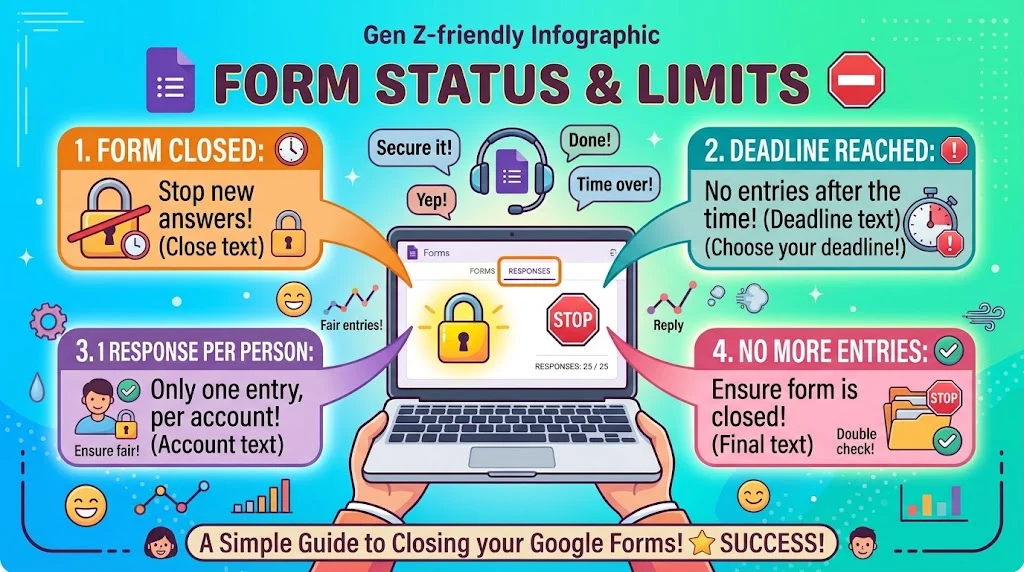
Google Forms has no built in response cap, so you limit responses by closing the form manually, using an add on like FormLimiter, or setting a deadline. Top options: FormLimiter add on, manual close, email restriction, date based cutoff, Apps Script trigger.
You built the perfect Google Form and now you are refreshing the responses tab like it owes you money. Then it happens. Ninety entries turn into three hundred, and suddenly you are drowning in duplicate submissions. Learning how to limit responses in Google Forms is the difference between a clean data set and a spreadsheet that makes you question your life choices.
The good news is that Google Forms gives you a few built in tools and a whole ecosystem of add ons to put a stop to the chaos. Whether you want to close after a set number of entries, block duplicate emails, or shut things down on a specific date, there is a setting or script for it. Get this right and your form stays tidy, your data stays usable, and your sanity stays intact.
Quick Fix Responses
- Open your form and head to the Responses tab.
Example: Use this as your first stop before touching any settings.
Meaning: Shows you where the master controls live. - Toggle Accepting responses to off.
Example: Use this when you want to close the form right now.
Meaning: Instantly stops new submissions. - Click the three dots next to the toggle for more options.
Example: Use this when you need the custom closing message.
Meaning: Reveals the finer controls. - Set a custom message for people who arrive too late.
Example: Use this when the form is full or closed.
Meaning: Explains the situation without confusion. - Turn on Collect email addresses.
Example: Use this when you need to track who submitted.
Meaning: Unlocks the one response per person option. - Enable Limit to 1 response.
Example: Use this for surveys where duplicates ruin the data.
Meaning: Blocks repeat entries from the same account. - Share the form with a shortened link.
Example: Use this when posting to social media or a group chat.
Meaning: Keeps tracking clean and easy to manage. - Check the Responses tab before closing.
Example: Use this when you want to confirm the count.
Meaning: Prevents closing too early or too late. - Download a copy before shutting it down.
Example: Use this when the data matters long term.
Meaning: Keeps your records safe. - Test the closed form yourself.
Example: Use this after every change.
Meaning: Confirms the message and behavior look right. - Duplicate the form for round two.
Example: Use this when you reopen submissions later.
Meaning: Keeps old and new data separate. - Bookmark the edit link somewhere safe.
Example: Use this if you manage many forms.
Meaning: Saves time when you need a fast close.
Limit By Response Count Responses
- Install FormLimiter from the add ons menu.
Example: Use this when you need a hard stop at a specific number.
Meaning: Adds the missing response cap feature. - Set the limit to your exact target number.
Example: Use this for limited seats or giveaway entries.
Meaning: Closes the form automatically at that count. - Choose what happens when the limit hits.
Example: Use this to show a custom closed message.
Meaning: Controls the experience for late arrivals. - Test with a low limit first.
Example: Use this before launching to a big audience.
Meaning: Confirms the add on fires correctly. - Recheck the limit after editing questions.
Example: Use this after any form changes.
Meaning: Prevents the setting from resetting silently. - Keep the add on enabled at all times.
Example: Use this for time sensitive forms.
Meaning: Ensures the cap actually triggers. - Add a buffer if you expect drop offs.
Example: Use this for event RSVPs.
Meaning: Accounts for people who sign up and vanish. - Document the limit in the form description.
Example: Use this when spots are genuinely limited.
Meaning: Sets expectations and reduces angry messages. - Watch the counter daily.
Example: Use this during high traffic campaigns.
Meaning: Lets you prepare the next step. - Have a backup form ready.
Example: Use this for waitlist collection after the cap.
Meaning: Keeps interested people engaged. - Screenshot the settings before you share.
Example: Use this for team accountability.
Meaning: Gives you proof if something breaks. - Reinstall the add on if it stops firing.
Example: Use this after Google pushes updates.
Meaning: Restores the response limit quickly.
Close By Date Responses
- Pick a clear deadline and write it down.
Example: Use this for contest entries or registrations.
Meaning: Gives you a fixed target to work toward. - Use FormLimiter for date based closing.
Example: Use this when you want automatic shutdown.
Meaning: Removes the need to babysit the form. - Set the time zone correctly.
Example: Use this when your audience spans regions.
Meaning: Prevents accidental early or late closes. - Add the deadline to the form title.
Example: Use this for time sensitive surveys.
Meaning: Makes urgency obvious at a glance. - Mention the cutoff in every share message.
Example: Use this when posting on social platforms.
Meaning: Reduces last minute confusion. - Test the closed state before the deadline.
Example: Use this a day early.
Meaning: Confirms the message appears as expected. - Schedule a reminder post before closing.
Example: Use this for events with hard cutoffs.
Meaning: Gives people one final chance. - Keep responses open a few minutes past the deadline.
Example: Use this for fairness with slow connections.
Meaning: Avoids punishing people who were on time. - Archive the sheet right after closing.
Example: Use this when the data is final.
Meaning: Protects your records. - Note the deadline in the sheet name.
Example: Use this when managing multiple rounds.
Meaning: Saves future you from confusion. - Turn off notifications after closing.
Example: Use this to stop late night pings.
Meaning: Keeps your inbox quiet. - Publish the results only after the cutoff.
Example: Use this for fair contests.
Meaning: Prevents accusations of early bias.
Restrict By Email Responses
- Turn on Collect email addresses first.
Example: Use this before enabling any restriction.
Meaning: Makes email based limits possible. - Enable Limit to 1 response.
Example: Use this for voting or feedback forms.
Meaning: Blocks repeat entries from one account. - Require respondents to sign in.
Example: Use this when identity matters.
Meaning: Forces Google account verification. - Use a Google Workspace domain restriction.
Example: Use this for internal company forms.
Meaning: Keeps outsiders out automatically. - Create a list of approved emails.
Example: Use this for invite only sessions.
Meaning: Gives you manual control over access. - Add a short answer field for email confirmation.
Example: Use this when you cannot require sign in.
Meaning: Adds a light layer of accountability. - Check the responder email column in the sheet.
Example: Use this after the form closes.
Meaning: Lets you spot duplicates fast. - Sort the sheet by email to find repeats.
Example: Use this when cleaning data.
Meaning: Makes duplicate removal quick. - Remove duplicates manually if needed.
Example: Use this before analyzing results.
Meaning: Keeps your numbers honest. - Warn users about the one response rule.
Example: Use this in the form description.
Meaning: Reduces accidental double submissions. - Test with two different accounts.
Example: Use this before launching.
Meaning: Confirms the block actually works. - Document the rule for your team.
Example: Use this when multiple people manage the form.
Meaning: Prevents someone from switching it off.
Turn Off Responses Responses
- Flip the Accepting responses toggle to off.
Example: Use this when you need an instant stop.
Meaning: Closes the form in one click. - Write a friendly closed message.
Example: Use this instead of the default text.
Meaning: Keeps the experience polite. - Explain why the form is closed.
Example: Use this when the limit was reached.
Meaning: Reduces confusion and follow up emails. - Add an alternative contact.
Example: Use this when people still need help.
Meaning: Gives late arrivals somewhere to go. - Include a waitlist link.
Example: Use this for sold out events.
Meaning: Captures demand you would otherwise lose. - Keep the message short and clear.
Example: Use this for mobile readers.
Meaning: Improves the odds it gets read. - Avoid vague wording like try again later.
Example: Use this when there is no reopening plan.
Meaning: Prevents endless follow up questions. - Review the message on mobile.
Example: Use this before sharing the closed form.
Meaning: Ensures it looks clean on small screens. - Save the wording as a template.
Example: Use this if you close forms often.
Meaning: Saves time on future forms. - Tell your team the form is closed.
Example: Use this when others share the link.
Meaning: Stops people from promising access. - Update any public links or posts.
Example: Use this when the form was shared widely.
Meaning: Prevents wasted clicks. - Reopen only with a clear new deadline.
Example: Use this when demand justifies a second round.
Meaning: Keeps expectations realistic.
Require Sign In Responses
- Turn on the sign in requirement in settings.
Example: Use this when you need verified identities.
Meaning: Limits submissions to real accounts. - Restrict to your organization only.
Example: Use this for internal feedback forms.
Meaning: Keeps external users out. - Explain the sign in rule upfront.
Example: Use this in the form description.
Meaning: Prevents drop offs from confusion. - Mention privacy expectations.
Example: Use this when collecting sensitive feedback.
Meaning: Builds trust with respondents. - Test with a personal and work account.
Example: Use this before a big launch.
Meaning: Confirms the restriction behaves correctly. - Watch for shared device issues.
Example: Use this in school or office settings.
Meaning: Prevents accidental blocks on shared computers. - Allow a fallback for people without accounts.
Example: Use this when your audience is mixed.
Meaning: Keeps participation inclusive. - Check the email column after closing.
Example: Use this to verify only approved users entered.
Meaning: Confirms the restriction held. - Note the rule in your data notes.
Example: Use this when sharing results.
Meaning: Keeps your methodology transparent. - Combine with the one response limit.
Example: Use this for fair voting.
Meaning: Blocks both outsiders and duplicates. - Warn users about sign in time.
Example: Use this when the form is time sensitive.
Meaning: Reduces last minute panic. - Review the setting after every edit.
Example: Use this when duplicating forms.
Meaning: Prevents accidental resets.
Custom Confirmation Message Responses
- Write a thank you message people actually enjoy.
Example: Use this after every successful submission.
Meaning: Leaves a positive final impression. - Confirm what happens next.
Example: Use this for event registrations.
Meaning: Reduces follow up questions. - Include the expected response timeline.
Example: Use this for job applications.
Meaning: Sets realistic expectations. - Add a link to your main page.
Example: Use this for lead generation forms.
Meaning: Keeps the journey moving. - Mention the deadline in the message.
Example: Use this for contests.
Meaning: Reinforces urgency. - Keep it under three sentences.
Example: Use this for mobile users.
Meaning: Improves readability. - Use a friendly tone that matches your brand.
Example: Use this for community surveys.
Meaning: Keeps the voice consistent. - Include a support contact.
Example: Use this for complex forms.
Meaning: Gives people an escape hatch. - Add the form close date.
Example: Use this when submissions end soon.
Meaning: Prevents late entries confusion. - Test the message on a real submission.
Example: Use this before sharing the link.
Meaning: Confirms it displays correctly. - Save the wording for reuse.
Example: Use this across similar forms.
Meaning: Saves time and keeps tone consistent. - Update it when the rules change.
Example: Use this after a limit adjustment.
Meaning: Prevents outdated info.
Error And Full Responses
- Design a clear form is full message.
Example: Use this when the response cap is reached.
Meaning: Explains the situation instantly. - Avoid blaming the user.
Example: Use this when the limit closed early.
Meaning: Keeps the tone respectful. - Offer a next step every time.
Example: Use this when people still want in.
Meaning: Turns a dead end into a lead. - Add a waitlist link in the message.
Example: Use this for limited capacity events.
Meaning: Captures interest you would otherwise lose. - Mention the reason for closure.
Example: Use this when capacity was the cause.
Meaning: Removes the mystery. - Keep the message consistent across forms.
Example: Use this when running multiple campaigns.
Meaning: Builds a familiar experience. - Check the message after every add on update.
Example: Use this after Google pushes changes.
Meaning: Prevents broken or blank screens. - Translate the message if needed.
Example: Use this for multilingual audiences.
Meaning: Keeps access fair for everyone. - Add the contact email in bold.
Example: Use this for urgent situations.
Meaning: Makes the next step obvious. - Test with a real closed form.
Example: Use this before a big campaign.
Meaning: Confirms the experience end to end. - Avoid technical jargon.
Example: Use this for general audiences.
Meaning: Keeps it understandable. - Review the message quarterly.
Example: Use this for always on forms.
Meaning: Keeps the wording fresh.
Advanced Add On Responses
- Browse the add ons menu for response tools.
Example: Use this when built in settings are not enough.
Meaning: Unlocks extra control. - Compare FormLimiter with other options.
Example: Use this before committing to one.
Meaning: Finds the best fit for your needs. - Check the add on review count.
Example: Use this for reliability.
Meaning: Reduces the risk of a broken tool. - Read recent reviews carefully.
Example: Use this before installing anything new.
Meaning: Avoids tools that stopped working. - Grant only necessary permissions.
Example: Use this when installing add ons.
Meaning: Protects your account and data. - Test the add on on a duplicate form.
Example: Use this before touching the live one.
Meaning: Keeps your main form safe. - Set the limit and verify it fires.
Example: Use this with a small test group.
Meaning: Confirms the tool works as promised. - Keep a backup manual close plan.
Example: Use this if the add on fails.
Meaning: Ensures you are never stuck. - Document which add on you used.
Example: Use this when handing off the form.
Meaning: Saves your teammate the guesswork. - Remove unused add ons.
Example: Use this after the campaign ends.
Meaning: Keeps the form fast and clean. - Reinstall after major Google updates.
Example: Use this when behavior changes suddenly.
Meaning: Restores normal function. - Check the add on dashboard weekly.
Example: Use this for long running forms.
Meaning: Catches issues early.
Sheet And Script Responses
- Link your form to Google Sheets.
Example: Use this before adding any automation.
Meaning: Creates a live record of responses. - Open Apps Script from the sheet.
Example: Use this when you need a custom limit.
Meaning: Unlocks full control over behavior. - Write a trigger on form submit.
Example: Use this to count responses automatically.
Meaning: Lets you close the form at an exact number. - Check the response count in the script.
Example: Use this as your limit condition.
Meaning: Decides when to stop accepting. - Close the form when the count hits your target.
Example: Use this for giveaway entries.
Meaning: Enforces the cap precisely. - Add a timestamp column.
Example: Use this when tracking timing matters.
Meaning: Helps with date based cutoffs. - Test the script with dummy data.
Example: Use this before the real launch.
Meaning: Prevents surprises on launch day. - Set up failure notifications.
Example: Use this for critical forms.
Meaning: Alerts you if the script breaks. - Keep a copy of the script text.
Example: Use this when sharing with teammates.
Meaning: Makes recovery easy. - Review triggers after editing the script.
Example: Use this after any change.
Meaning: Prevents duplicate trigger runs. - Use installable triggers for reliability.
Example: Use this for high traffic forms.
Meaning: Ensures the trigger actually fires. - Log the closure reason in a cell.
Example: Use this when auditing later.
Meaning: Gives you a clear paper trail.
Troubleshooting Responses
- Check that accepting responses is actually on.
Example: Use this when nobody can submit.
Meaning: Catches the simplest cause first. - Confirm the add on is still installed.
Example: Use this when the limit stops working.
Meaning: Rules out an accidental removal. - Reauthorize the add on after a password change.
Example: Use this when permissions break.
Meaning: Restores normal operation. - Clear your browser cache and retry.
Example: Use this when settings look wrong.
Meaning: Rules out a display glitch. - Open the form in an incognito window.
Example: Use this to test like a real user.
Meaning: Confirms behavior without account effects. - Check the sheet for unexpected entries.
Example: Use this after the form closes.
Meaning: Reveals if the limit actually held. - Look for duplicate forms.
Example: Use this when old links still work.
Meaning: Finds the copy you forgot about. - Verify the share link is the right one.
Example: Use this when responses look off.
Meaning: Prevents data going to the wrong place. - Test the one response limit with two accounts.
Example: Use this after enabling it.
Meaning: Confirms the block works. - Review the time zone on date based limits.
Example: Use this when the form closes early.
Meaning: Fixes the most common scheduling bug. - Ask a teammate to test the link.
Example: Use this when you cannot reproduce the issue.
Meaning: Gets a second set of eyes. - Rebuild the form if things get truly broken.
Example: Use this as a last resort.
Meaning: Saves time over endless fixing.
Common Mistake Responses
- Do not assume there is a built in response cap.
Example: Use this before promising a client a limit.
Meaning: Sets the right expectation from the start. - Do not turn on the one response limit without sign in.
Example: Use this when duplicates keep appearing.
Meaning: Prevents a false sense of security. - Do not close the form before downloading data.
Example: Use this at the end of every campaign.
Meaning: Protects against accidental loss. - Do not share the edit link publicly.
Example: Use this when posting on social media.
Meaning: Keeps your form safe from edits. - Do not forget to update the closed message.
Example: Use this when the reason changes.
Meaning: Avoids confusing late arrivals. - Do not rely on a single add on forever.
Example: Use this when planning long term.
Meaning: Protects you from tool changes. - Do not skip the test submission.
Example: Use this before every launch.
Meaning: Catches issues that settings hide. - Do not ignore the time zone setting.
Example: Use this for global audiences.
Meaning: Prevents early or late closures. - Do not leave old form links active.
Example: Use this after a campaign ends.
Meaning: Stops data from leaking in. - Do not let multiple people edit settings freely.
Example: Use this when a team runs the form.
Meaning: Keeps the configuration stable. - Do not forget to tell people the form closed.
Example: Use this when there was a deadline.
Meaning: Reduces angry messages. - Do not reopen without a clear new rule.
Example: Use this for second rounds.
Meaning: Keeps the process fair.
Pro Tip Responses
- Set a limit slightly below your true capacity.
Example: Use this for event sign ups.
Meaning: Creates a buffer for no shows. - Pair a response cap with a waitlist form.
Example: Use this for high demand events.
Meaning: Captures demand you would lose. - Add a note to your calendar on close day.
Example: Use this for date based limits.
Meaning: Gives you a manual safety net. - Use a second form for post deadline requests.
Example: Use this for late interest.
Meaning: Keeps the main data clean. - Name your forms with the close date.
Example: Use this when running many campaigns.
Meaning: Makes future sorting simple. - Keep a master settings checklist.
Example: Use this before every launch.
Meaning: Prevents skipped steps. - Test on mobile first.
Example: Use this when most traffic is phones.
Meaning: Confirms the experience where it matters. - Write the closed message early.
Example: Use this during the setup phase.
Meaning: Saves panic later. - Track the number of entries daily.
Example: Use this during a live campaign.
Meaning: Helps you forecast the close. - Screenshot the responses count before closing.
Example: Use this for reporting.
Meaning: Gives you a clean record. - Share the final count with your team.
Example: Use this after closing.
Meaning: Keeps everyone aligned. - Archive the form settings for next time.
Example: Use this after each round.
Meaning: Makes round two way faster.
Notification And Alert Responses
- Turn on email notifications for new responses.
Example: Use this for low volume forms.
Meaning: Keeps you informed in real time. - Avoid notifications on high volume forms.
Example: Use this for open surveys.
Meaning: Protects your inbox. - Use a sheet alert for unusual spikes.
Example: Use this to spot bot traffic.
Meaning: Catches issues early. - Set a reminder to check the limit daily.
Example: Use this for time sensitive forms.
Meaning: Prevents overshooting the cap. - Ask the add on to notify you at closure.
Example: Use this for automated limits.
Meaning: Confirms the stop actually happened. - Check notifications after every test run.
Example: Use this during setup.
Meaning: Verifies the pipeline works. - Assign one owner for alerts.
Example: Use this when a team runs the form.
Meaning: Prevents missed warnings. - Mute notifications after closing.
Example: Use this once the campaign ends.
Meaning: Keeps your inbox calm. - Log any alert failures.
Example: Use this when something goes wrong.
Meaning: Builds your troubleshooting history. - Review alert settings monthly.
Example: Use this for always on forms.
Meaning: Keeps the setup healthy. - Test alerts with a dummy submission.
Example: Use this before a big push.
Meaning: Confirms you will actually be notified. - Keep a backup contact for alerts.
Example: Use this when you are on vacation.
Meaning: Ensures coverage.
Checklist And Workflow Responses
- Build a pre launch checklist.
Example: Use this before every form goes live.
Meaning: Prevents forgotten settings. - Confirm the form title and description.
Example: Use this as step one.
Meaning: Sets the right context. - Verify the response cap or deadline is set.
Example: Use this as step two.
Meaning: Locks in your limit. - Check the confirmation message.
Example: Use this as step three.
Meaning: Confirms what people see at the end. - Test the closed state message.
Example: Use this as step four.
Meaning: Ensures late arrivals get clarity. - Confirm email collection settings.
Example: Use this as step five.
Meaning: Keeps your data usable. - Validate sharing permissions.
Example: Use this as step six.
Meaning: Prevents random editing. - Do a full test submission.
Example: Use this as step seven.
Meaning: Catches issues settings cannot show. - Delete the test response.
Example: Use this right after testing.
Meaning: Keeps your data clean. - Set a calendar reminder to close.
Example: Use this for manual limits.
Meaning: Gives you a backup plan. - Archive everything after closing.
Example: Use this at the end of every round.
Meaning: Makes the next campaign easier.
FAQs
How do I limit responses in Google Forms?
Google Forms has no built in cap, so you either close it manually, use an add on like FormLimiter, set a deadline, or use a script to close it at a set number.
Can I close a form after a certain number of responses?
Not natively. You need an add on or Apps Script trigger to close it automatically at a specific count.
How do I stop duplicate submissions?
Turn on Collect email addresses, then enable Limit to 1 response. Respondents will need to sign in to a Google account.
Is there a way to close a form automatically?
Yes. FormLimiter can close on a date or a response count, and Apps Script can close it based on any custom condition.
What happens when someone opens a closed form?
They see your closing message. Make sure you write a clear one with a next step, like a waitlist link or contact email.
Conclusion
Limiting responses in Google Forms is not hard once you know where to look. The manual toggle handles instant closes, add ons handle automatic caps, and scripts handle anything unusual. The trick is testing before you launch and writing a closed message that actually helps people.
Whether you are running a giveaway, an event sign up, or an internal survey, the right limit keeps your data clean and your inbox calm. Try a few approaches, see what fits your workflow, and build a checklist you can reuse.
