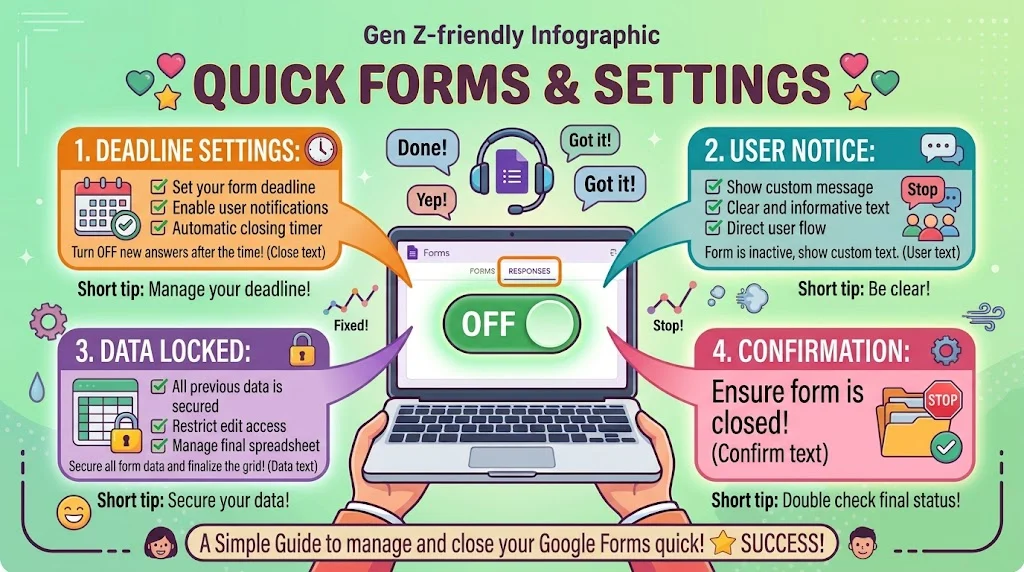
Open your form, go to the Responses tab, and switch off Accepting Responses. You can also set an automatic close date, cap submissions with a limit, or unlink the response Sheet to stop new entries.
You have collected enough answers and now you want the form to stop accepting new ones. Maybe the deadline passed, the event filled up, or the survey data is complete. Knowing how to close Google Form responses properly means nobody submits twice and your data stays clean.
Closing a form is not just about flipping a switch. If you do it the wrong way, you can lose access to your own form, delete old answers, or leave respondents staring at a confusing error page. The good news is that Google gives you several clean ways to do it, and each one fits a different situation.
Below you will find every method laid out simply, along with exact wording for telling people the form is closed. Whether you are a teacher wrapping up a quiz or a manager finishing a feedback round, this guide has you covered.
Quick Methods To Close Responses
- Switch off Accepting Responses in the Responses tab.
Example: Use when you want to stop new entries immediately.
Meaning: The fastest way to close a form without deleting anything. - Untick the Accepting Responses box and hit Save.
Example: Use when you are editing settings and need it done in two clicks.
Meaning: Confirms the change applies to the live form. - Set a close date and time in the Settings tab.
Example: Use when you know exactly when collection should end.
Meaning: Lets the form close itself without you lifting a finger. - Add a response limit through your linked Sheet.
Example: Use for signups with a fixed number of spots.
Meaning: Automatically stops accepting entries once the cap is hit. - Delete the sharing link from where it was posted.
Example: Use when the form was shared in a group chat or website.
Meaning: Cuts off new traffic even if the form stays live. - Untick Accepting Responses inside Settings, Responses section.
Example: Use when you prefer the newer settings layout.
Meaning: Same result, different menu path. - Republish after closing so the live version updates.
Example: Use when the form still seems to accept entries.
Meaning: Ensures everyone sees the closed state. - Turn off the toggle before editing questions.
Example: Use when making major changes to a live form.
Meaning: Prevents half finished edits from being submitted. - Remove the form from any embedded page.
Example: Use when the form lives on your website.
Meaning: Stops submissions at the source. - Update any QR codes that point to the form.
Example: Use when printed materials still send people to it.
Meaning: Closes the back door you forgot about. - Ask collaborators to stop sharing the link.
Example: Use when a team manages the form together.
Meaning: Prevents accidental reopening. - Take a final backup of responses before closing.
Example: Use before any major change.
Meaning: Protects your data no matter what happens next.
Step By Step On Desktop
- Open the form in Google Forms.
Example: Use as your starting point on a computer.
Meaning: Gets you to the editor where all controls live. - Click the Responses tab at the top.
Example: Use when you are ready to stop collection.
Meaning: Takes you straight to the collection controls. - Find the Accepting Responses toggle.
Example: Use when you want the simplest method.
Meaning: That single switch is the main control. - Switch it off and confirm.
Example: Use when you need the form closed right now.
Meaning: Instantly blocks new entries. - Open Settings and review the Responses section.
Example: Use if the toggle is not visible in your layout.
Meaning: Google sometimes moves controls between menus. - Untick Accepting Responses in Settings if needed.
Example: Use when the newer interface hides the toggle.
Meaning: Same outcome through a different path. - Click Save or let autosave finish.
Example: Use when you made changes and want them applied.
Meaning: Unsaved edits do not affect the live form. - Republish with the Send button.
Example: Use when the form still shows as open.
Meaning: Forces the live version to refresh. - Test the published link in incognito.
Example: Use right after closing.
Meaning: Confirms respondents now see the closed message. - Check the Responses tab for a status indicator.
Example: Use when you want visual proof it worked.
Meaning: Google shows whether the form is accepting entries. - Note the date and time you closed it.
Example: Use for records and reporting.
Meaning: Keeps your timeline clear for later reference. - Tell your audience the form is closed.
Example: Use when people are still trying to submit.
Meaning: Saves them from confusion and repeated attempts.
Step By Step On Mobile
- Open the Google Forms app on your phone.
Example: Use when you are away from a computer.
Meaning: Lets you close a form from anywhere. - Tap your form to open it.
Example: Use when you have several forms in the list.
Meaning: Takes you to the correct form quickly. - Go to the Responses tab.
Example: Use when you are ready to stop collection.
Meaning: Same location as desktop. - Switch off Accepting Responses.
Example: Use when you need an instant stop.
Meaning: Blocks new entries on the spot. - Open Settings and check the Responses section.
Example: Use if the toggle is not in the expected place.
Meaning: The mobile layout rearranges some controls. - Untick the acceptance option and save.
Example: Use when the app hides the main toggle.
Meaning: Achieves the same result. - Use the browser version if the app lags.
Example: Use when the app will not save your change.
Meaning: Desktop mode in a mobile browser always works. - Refresh the form after saving.
Example: Use when the setting seems stuck.
Meaning: Confirms the change actually applied. - Ask a friend to test the link.
Example: Use when you cannot open incognito on mobile.
Meaning: Verifies the closed state from outside. - Screenshot the closed confirmation screen.
Example: Use when you need proof for a manager.
Meaning: Gives you a quick record. - Reply to pending queries with a short note.
Example: Use when people ask why they cannot submit.
Meaning: Keeps communication clear. - Post an update in the group where you shared it.
Example: Use when the link went out to a chat.
Meaning: Reaches everyone at once.
Schedule An Automatic Close
- Open Settings and find the Responses section.
Example: Use when you want the form to close itself.
Meaning: This is where the deadline controls live. - Set a close date and time.
Example: Use for events, quizzes, and surveys with deadlines.
Meaning: Google stops accepting entries automatically. - Choose a time that includes the right time zone.
Example: Use when your audience spans regions.
Meaning: Prevents early or late shutdowns. - Give people at least a day of notice.
Example: Use when announcing a deadline.
Meaning: Reduces last minute panic. - Add the deadline to your calendar.
Example: Use so you remember to check results.
Meaning: Keeps you from scrambling afterwards. - Remove the date if plans change.
Example: Use when you need to extend collection.
Meaning: The form reopens without rebuilding anything. - Test with a temporary close date first.
Example: Use before trusting it for a big survey.
Meaning: Confirms the timing works as expected. - Combine a deadline with a response limit.
Example: Use for limited capacity signups.
Meaning: Whichever hits first closes the form. - Announce the deadline in the form description.
Example: Use so respondents see it clearly.
Meaning: Sets expectations right where people are reading. - Check the time zone on the owner account.
Example: Use when a close date fires at an odd hour.
Meaning: Settings follow the account’s locale. - Screenshot the setting after saving.
Example: Use for your own records.
Meaning: Avoids confusion if someone asks why it closed. - Revisit the setting after every edit.
Example: Use when duplicating a form for a new round.
Meaning: Old dates carry over and close forms too early.
Close Responses But Keep Editing
- Switch off acceptance without touching questions.
Example: Use when you need to fix typos after collection ends.
Meaning: Editing stays available while submissions stay blocked. - Keep the form in Drive rather than deleting it.
Example: Use when the form might be reused later.
Meaning: Deleting breaks links and loses the structure. - Duplicate the form before major edits.
Example: Use when you want a clean version for next time.
Meaning: Preserves your original exactly as it was. - Rename the form clearly, like Survey 2025 Final.
Example: Use when managing several versions.
Meaning: Saves you from editing the wrong file. - Keep the Responses tab visible for review.
Example: Use when you still need to check answers.
Meaning: Closing collection does not hide the data. - Leave the Sheet linked until you finish analysis.
Example: Use when you are still sorting results.
Meaning: Unlinking too early can confuse your workflow. - Turn off editing permissions for collaborators.
Example: Use when the round is officially done.
Meaning: Prevents accidental changes after closing. - Note what you changed in the form description.
Example: Use when sharing an archived version.
Meaning: Gives context to anyone who opens it later. - Export a copy of responses first.
Example: Use before restructuring anything.
Meaning: Protects data in case of a mistake. - Avoid deleting questions while reviewing results.
Example: Use when the Sheet is still linked.
Meaning: Structural edits can break column mapping. - Switch acceptance back on only when ready.
Example: Use when reusing the same form for a new round.
Meaning: Keeps each round separate and clean. - Archive finished forms in a dedicated folder.
Example: Use when your Drive gets crowded.
Meaning: Keeps live forms easy to find.
Close For Specific People Only
- Restrict the form to your organization.
Example: Use for internal feedback only.
Meaning: Blocks anyone outside your domain. - Turn on sign in requirement.
Example: Use when you need to verify respondents.
Meaning: Limits submissions to known accounts. - Enable Limit to 1 response.
Example: Use for voting and one per person surveys.
Meaning: Stops repeat submissions from the same account. - Remove the public link from social posts.
Example: Use when the audience should be invite only.
Meaning: Cuts off outside access. - Share with specific people instead of anyone with the link.
Example: Use for sensitive internal forms.
Meaning: Only invited accounts can respond. - Whitelist approved email addresses through settings.
Example: Use when a small group needs access.
Meaning: Narrows responses to the right people. - Check admin level sharing rules with your Workspace admin.
Example: Use when external users cannot open the form.
Meaning: Admin policies override your own settings. - Warn respondents that sign in is required.
Example: Use before sending a restricted form.
Meaning: Prevents failed attempts and complaints. - Test with a personal account to confirm the block works.
Example: Use right after making changes.
Meaning: Proves restrictions are actually active. - Review permissions after every edit.
Example: Use when you reopen a form for a new round.
Meaning: Settings can reset when forms are copied. - Remove collaborators who no longer need access.
Example: Use when a project wraps up.
Meaning: Keeps control in the right hands. - Document who has access and why.
Example: Use for team forms with many editors.
Meaning: Makes future changes easier to manage.
Close After A Response Limit
- Decide your capacity before sharing the form.
Example: Use for events, workshops, and limited seats.
Meaning: Prevents overbooking. - Watch the Response count in the Responses tab.
Example: Use during busy collection periods.
Meaning: Shows how close you are to the cap. - Close manually once the target number is reached.
Example: Use when the number is small enough to monitor.
Meaning: Gives you exact control. - Use a Sheet formula to flag when the limit is hit.
Example: Use for larger signups.
Meaning: Helps you react fast without constant checking. - Keep a short waitlist question ready in the form.
Example: Use when demand may exceed capacity.
Meaning: Captures interest without overbooking. - Send a confirmation to everyone who made it in.
Example: Use as soon as the cap is reached.
Meaning: Removes uncertainty for respondents. - Update the form description with a full notice.
Example: Use if you reopen for a second round.
Meaning: Tells newcomers the current status. - Avoid leaving the form open overnight near the limit.
Example: Use when spots matter.
Meaning: Prevents overshooting while you sleep. - Check for duplicate entries before closing.
Example: Use when a few people submitted twice.
Meaning: Frees up spots for genuine respondents. - Archive the first round before opening the second.
Example: Use for recurring limited events.
Meaning: Keeps each round’s data clean. - Announce the cap in advance.
Example: Use when sharing the form widely.
Meaning: Reduces complaints when it closes. - Keep the closed form available for reference.
Example: Use when people ask what they signed up for.
Meaning: Preserves the original questions and options.
Keep Old Data Safe
- Download responses as a Sheet or CSV first.
Example: Use before closing or editing anything.
Meaning: Gives you a permanent copy. - Make a copy of the linked Sheet.
Example: Use when the data matters long term.
Meaning: Protects against accidental changes. - Do not unlink the Sheet until analysis is done.
Example: Use while you are still working through results.
Meaning: Unlinking can complicate your workflow. - Avoid deleting rows in the linked Sheet.
Example: Use during any live or recently closed period.
Meaning: Deleted rows are hard to recover. - Check Drive trash if responses seem missing.
Example: Use when a teammate cleaned up files.
Meaning: Restoring is usually possible within the retention window. - Note the closing date next to the form name.
Example: Use when running several rounds.
Meaning: Keeps your records organized. - Restrict edit access on the results Sheet.
Example: Use when the data is final.
Meaning: Prevents accidental overwrites. - Export a PDF summary for reporting.
Example: Use when sharing results with stakeholders.
Meaning: Gives a clean, read only version. - Keep a backup in a separate folder or drive.
Example: Use for important projects.
Meaning: Protects against account changes. - Confirm the row count before and after closing.
Example: Use to be sure nothing was lost.
Meaning: Quick sanity check. - Avoid structural changes to the Sheet after closing.
Example: Use when the form may be reopened.
Meaning: Preserves the mapping between form and sheet. - Document where the data lives for your team.
Example: Use when handing off a project.
Meaning: Saves everyone time later.
Reopen A Closed Form
- Switch Accepting Responses back on.
Example: Use when you need more entries.
Meaning: Reopens the form without any rebuilding. - Update the close date if it has passed.
Example: Use when a deadline closed it automatically.
Meaning: The form will not open without a new date. - Remove the response limit if it was hit.
Example: Use when capacity was the reason it closed.
Meaning: Frees the form to accept entries again. - Republish and share a fresh link.
Example: Use when the old link behaves oddly.
Meaning: Ensures respondents reach the live version. - Announce the reopening clearly.
Example: Use when people were turned away earlier.
Meaning: Brings them back without confusion. - Check that old responses are still intact.
Example: Use right after reopening.
Meaning: Confirms nothing was lost in the process. - Review permissions before sharing again.
Example: Use when the audience has changed.
Meaning: Prevents accidental public access. - Keep the same link if possible.
Example: Use when the form was shared widely.
Meaning: Avoids sending a second round of updates. - Set a new deadline so it does not stay open forever.
Example: Use for time bound collections.
Meaning: Prevents a second round of forgetting to close. - Test submission after reopening.
Example: Use before telling anyone.
Meaning: Confirms the form actually works. - Update the form description with the new dates.
Example: Use when the timeline changed.
Meaning: Gives respondents accurate information. - Note what caused the reopen for your records.
Example: Use in team documentation.
Meaning: Helps you plan better next time.
Close A Quiz Or Test
- Set a close date for the quiz deadline.
Example: Use when students need a firm cutoff.
Meaning: Automatic closing keeps grading fair. - Turn off Accepting Responses after the last student submits.
Example: Use when everyone has finished early.
Meaning: Prevents late entries from sneaking in. - Switch off locked mode after the quiz ends.
Example: Use so students can review their answers.
Meaning: Locked mode is only needed during the test. - Release grades only after closing.
Example: Use when results should stay hidden until the deadline.
Meaning: Stops early finishers from sharing answers. - Check for incomplete submissions before closing.
Example: Use when the platform shows unsubmitted attempts.
Meaning: Gives students a fair chance to finish. - Announce the deadline at least twice.
Example: Use before every graded quiz.
Meaning: Reduces last minute complaints. - Confirm the answer key before turning off collection.
Example: Use when automatic grading is enabled.
Meaning: Avoids regrading later. - Export scores right after closing.
Example: Use when results are needed quickly.
Meaning: Gives you a clean record. - Keep the quiz available for review only.
Example: Use when students want to see what they missed.
Meaning: Supports learning without new submissions. - Disable retakes once the window closes.
Example: Use for fairness across the class.
Meaning: Prevents score inflation. - Reopen only for approved exceptions.
Example: Use when a student had a genuine issue.
Meaning: Keeps the process fair and documented. - Save a copy of the original quiz settings.
Example: Use when reusing it next term.
Meaning: Saves setup time later.
Close Shared Or Copied Forms
- Check whether you own the form or just edit it.
Example: Use when a teammate created the original.
Meaning: Ownership affects what you can change. - Coordinate with the owner before closing.
Example: Use on team managed forms.
Meaning: Prevents someone reopening it minutes later. - Remove unused collaborators after closing.
Example: Use when the project is finished.
Meaning: Reduces accidental edits. - Duplicate the form for the next round instead of reopening.
Example: Use when running the same survey again.
Meaning: Keeps each round’s responses separate. - Clear old responses in the copy, not the original.
Example: Use when reusing a template.
Meaning: Protects the historical record. - Update the title after copying.
Example: Use so nobody confuses the two versions.
Meaning: Avoids editing the wrong file. - Rename the old Sheet to show it is archived.
Example: Use when a new round starts.
Meaning: Keeps data easy to identify. - Confirm the new copy is linked to a fresh Sheet.
Example: Use before sharing it.
Meaning: Prevents new responses landing in old data. - Test the copied form before announcing it.
Example: Use right after duplicating.
Meaning: Catches inherited settings that should change. - Share the new link, not the archived one.
Example: Use in all announcements.
Meaning: Stops confusion between rounds. - Move finished forms into an archive folder.
Example: Use at the end of each cycle.
Meaning: Keeps your Drive organized. - Tell the team which version is now live.
Example: Use after switching rounds.
Meaning: Removes any doubt about which link to share.
Polite Responses
- Thank you for your interest. The form is now closed.
Example: Use when replying to late respondents.
Meaning: Clear and friendly without over explaining. - We have reached our response limit. Thanks for understanding.
Example: Use when capacity filled up.
Meaning: Honest and considerate. - The submission window has ended. I will let you know if it reopens.
Example: Use when the deadline passed.
Meaning: Keeps the door open politely. - You can still view the form, but new entries are paused.
Example: Use when people ask why the button is gone.
Meaning: Explains the situation simply. - Thanks for checking in. We have all the responses we need.
Example: Use when someone asks if they can still submit.
Meaning: Warm and appreciative. - Sorry you missed it. I will add you to the waitlist instead.
Example: Use for limited capacity events.
Meaning: Offers an alternative rather than a flat no. - The form closed yesterday at noon. Happy to share the results soon.
Example: Use when someone asks about timing.
Meaning: Gives clarity and builds anticipation. - Please reach out if you have a special case.
Example: Use when exceptions might be needed.
Meaning: Keeps the conversation open. - Thanks for your patience while we wrapped this up.
Example: Use after a slightly messy close.
Meaning: Shows appreciation and grace. - Your response was received before we closed. You are all set.
Example: Use when someone worries they missed the cutoff.
Meaning: Removes anxiety with one line. - We will run this again soon, so keep an eye out.
Example: Use when a second round is planned.
Meaning: Leaves people feeling included. - Appreciate everyone who took the time to respond.
Example: Use in a closing group message.
Meaning: Ends on a positive, grateful note.
Professional Responses
- Please be advised that the form is no longer accepting responses as of today.
Example: Use in a formal notice to stakeholders.
Meaning: Clear and official. - The submission period has concluded. All entries received before the deadline have been recorded.
Example: Use in a status update email.
Meaning: Reassures people nothing was lost. - We have closed the form for review. A summary will follow shortly.
Example: Use when moving into analysis.
Meaning: Sets the next expectation. - Kindly direct any late submissions to me directly.
Example: Use when exceptions need handling manually.
Meaning: Provides a clear alternative route. - The response cap has been reached and the form is now closed.
Example: Use for capacity limited programs.
Meaning: Transparent and precise. - Please use the updated link for the next round.
Example: Use after duplicating the form.
Meaning: Prevents people using an archived version. - All data has been exported and archived per policy.
Example: Use in compliance focused organizations.
Meaning: Shows proper record handling. - We will notify you when the next submission window opens.
Example: Use for recurring collection rounds.
Meaning: Keeps stakeholders informed. - Thank you for your cooperation during this round of collection.
Example: Use in a closing communication.
Meaning: Professional courtesy. - Please confirm receipt of this notice.
Example: Use when tracking acknowledgments.
Meaning: Ensures everyone is informed. - The form is now in read only mode for reference.
Example: Use when people still need to view questions.
Meaning: Clarifies what is still accessible. - Reach out to the project lead for any exceptions.
Example: Use in large team settings.
Meaning: Routes requests to the right person.
Funny Responses
- The form has officially retired. It is resting now.
Example: Use when posting an update in a group chat.
Meaning: Light humor that still communicates the point. - Submissions are closed. My inbox can finally breathe.
Example: Use when a survey ran longer than planned.
Meaning: Relatable and fun. - The form said it needs a break. We are respecting its boundaries.
Example: Use with a friendly audience.
Meaning: Modern humor that softens the message. - Sorry, the form has left the building.
Example: Use when late respondents ask why it will not open.
Meaning: Classic joke that still lands. - You missed the window by that much.
Example: Use with friends or close colleagues.
Meaning: Playful teasing without being mean. - The form is in its off duty era.
Example: Use on social posts announcing closure.
Meaning: Gen Z friendly phrasing. - We hit capacity so fast the form got stage fright.
Example: Use when a launch filled up quickly.
Meaning: Fun way to explain a limit. - Good news: the form is closed. Bad news: you were not in it.
Example: Use with a friend who forgot to submit.
Meaning: Lighthearted and honest. - The button has clocked out for the day.
Example: Use when people ask why they cannot submit.
Meaning: Simple visual joke. - The form is taking some me time.
Example: Use in casual team updates.
Meaning: Friendly humor for a routine action. - Closing the form was the easiest thing I did all week.
Example: Use with a teammate who watched the chaos.
Meaning: Shares a small victory with humor. - Sorry, entries are sold out. The form has spoken.
Example: Use for limited capacity events.
Meaning: Playful way to say the cap was reached.
Pro Tips To Prevent Confusion
- Announce the closing date when you first share the form.
Example: Use in the very first message.
Meaning: Sets expectations from day one. - Put the deadline inside the form description.
Example: Use on the opening screen.
Meaning: Everyone sees it before they start typing. - Close the form before you start analysis.
Example: Use when results are due soon.
Meaning: Prevents numbers shifting mid report. - Send a closing reminder a day before.
Example: Use for important surveys.
Meaning: Captures the people who were about to submit. - Keep the same link for the same round.
Example: Use when updating people.
Meaning: Avoids duplicate forms floating around. - Never edit the form structure while it is live.
Example: Use during collection windows.
Meaning: Mid flight edits cause broken data and errors. - Duplicate before every new round.
Example: Use for recurring surveys or signups.
Meaning: Keeps each round’s data separate and clean. - Export responses right after closing.
Example: Use before editing or unlinking anything.
Meaning: Protects the data you worked to collect. - Keep an archive folder for finished forms.
Example: Use at the end of each cycle.
Meaning: Makes live forms easy to find. - Confirm the closed state with a test submission.
Example: Use right after every change.
Meaning: Proves it actually worked. - Document your settings in a quick checklist.
Example: Use before publishing any form.
Meaning: Turns a messy process into a habit. - Tell your team which version is live.
Example: Use when multiple copies exist.
Meaning: Stops the wrong link from spreading.
FAQs
How do I close Google Form responses?
Open the form, go to the Responses tab, and switch off Accepting Responses. If you prefer, open Settings and untick the same option there. Save or republish, then test the link in incognito to confirm it is closed.
Will closing a form delete my responses?
No. Closing only stops new entries. Everything already collected stays in the Responses tab and in your linked Sheet. You would have to delete the form or the Sheet to lose the data.
Can I reopen a closed form later?
Yes. Switch Accepting Responses back on and make sure any past close date or response limit is removed. Then republish and share the link again.
How do I close a form automatically at a certain time?
Go to Settings, find the Responses section, and set a close date and time. The form will stop accepting entries on its own without you needing to check in.
What do respondents see when the form is closed?
They see a message saying the form is no longer accepting responses. You can edit the confirmation message in Settings to make it friendlier or more specific.
Can I close a form for one person only?
Not for a single individual, but you can restrict it to your organization, require sign in, or enable Limit to 1 response. That narrows the audience without blocking the whole form.
Conclusion
Closing a form is a two second task, but doing it thoughtfully saves you hours later. Turn off the toggle, set a deadline, protect your data, and let people know why the door is shut. That is the whole game.
Every message you send around a closing date shapes how people see you. Clear, warm communication turns a routine admin move into a good impression. So keep this guide nearby, pick the method that matches your situation, and close with confidence.
