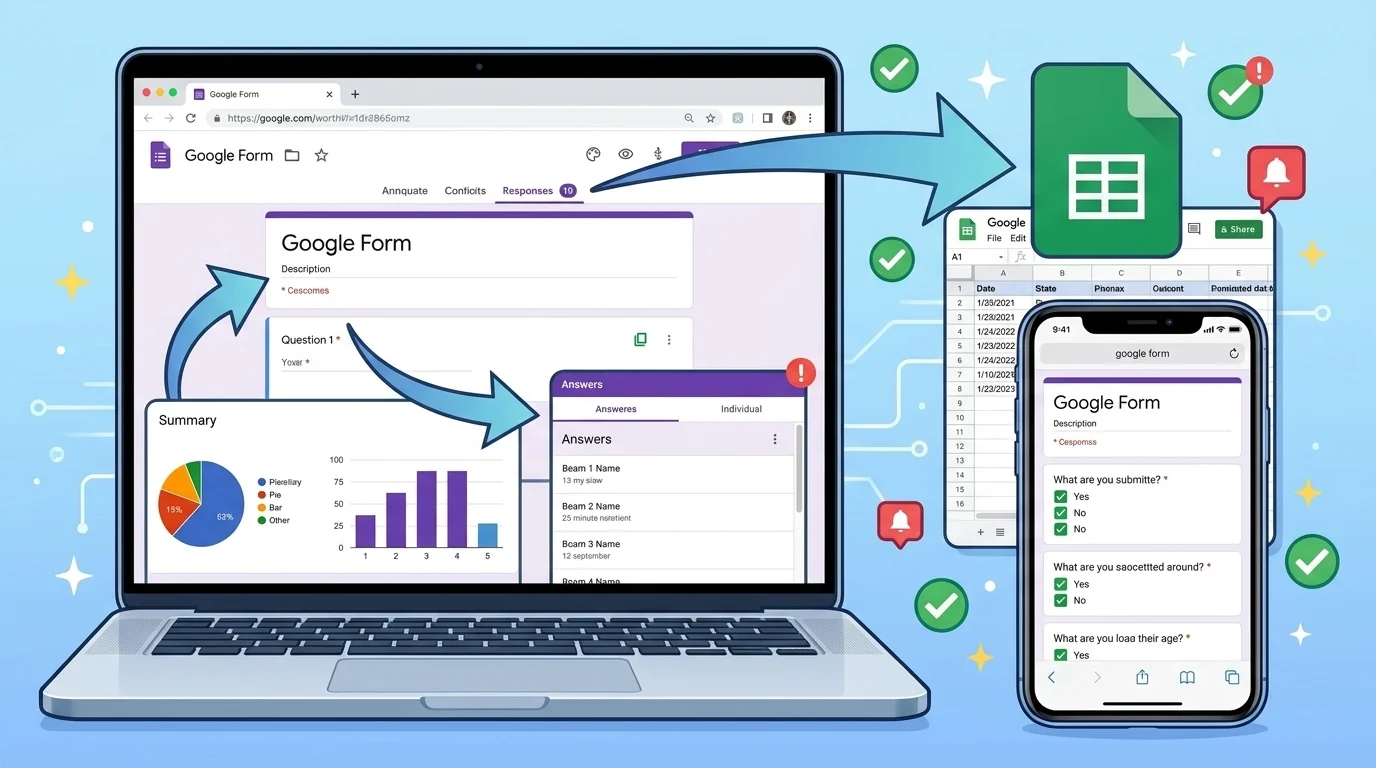
To view responses on Google Form, open your form and click the Responses tab, then choose Summary, Question, or Individual. You can also link Google Sheets, turn on email notifications, or use the Google Forms mobile app. Top alternatives: Responses tab, Summary view, Individual view, Google Sheets, Email notifications.
If you have ever sent a Google Form and then stared at your screen wondering where the answers went, you are not alone. Learning how to view responses on Google Form is the difference between guessing and actually using your data. Whether you are a teacher checking quiz scores, a small business collecting feedback, or a friend planning a party, those responses are gold.
Google Forms hides the good stuff behind one simple tab, but every device and account type looks a little different. The right method saves you time, prevents missed answers, and keeps your spreadsheet from becoming a mess. This guide breaks down 15 ways to see your responses, from desktop clicks to mobile taps and Google Sheets magic.
Quick Desktop Responses
- Open your Google Form on a computer.
Example: When you are at your desk and need answers fast.
Meaning: Starts the main viewing process. - Click the Responses tab at the top.
Example: When you want the default overview.
Meaning: Opens the response dashboard. - Toggle between Summary and Individual.
Example: When you need charts or specific replies.
Meaning: Switches view types. - Use the Question tab for single prompts.
Example: When one question needs deeper analysis.
Meaning: Filters answers by question. - Check the response count at the top.
Example: When you need a quick total.
Meaning: Shows how many people replied. - Click the three dots for more options.
Example: When you want to download or print.
Meaning: Opens extra response tools. - Select Download responses as CSV.
Example: When you need data in Excel.
Meaning: Exports all answers. - Open the linked Google Sheet.
Example: When you want live updating rows.
Meaning: Sends responses to Sheets. - Refresh the form page for new answers.
Example: When you are waiting on replies.
Meaning: Updates the response list. - Use the Accepting responses toggle.
Example: When you need to stop collecting.
Meaning: Controls form status. - Click Individual to read one person’s answers.
Example: When you need full context.
Meaning: Shows one submission at a time. - Use the arrows to move between people.
Example: When reviewing many entries.
Meaning: Navigates submissions quickly.
Mobile App Responses
- Open the Google Forms app.
Example: When you are away from your laptop.
Meaning: Access forms on your phone. - Tap the form you own.
Example: When you need answers on the go.
Meaning: Opens the form menu. - Tap the Responses tab.
Example: When you want a quick count.
Meaning: Shows mobile response view. - Swipe between Summary and Individual.
Example: When you need charts or details.
Meaning: Changes mobile view mode. - Tap a question to see answers.
Example: When one prompt matters most.
Meaning: Filters mobile responses. - Use the share icon for Sheets.
Example: When you want spreadsheet access.
Meaning: Links to Google Sheets. - Check the bell icon for notifications.
Example: When you want new reply alerts.
Meaning: Manages email updates. - Tap three dots for settings.
Example: When you need more control.
Meaning: Opens mobile options. - Turn off accepting responses.
Example: When the form is done.
Meaning: Stops new submissions. - Pull down to refresh the page.
Example: When answers are not showing.
Meaning: Reloads latest data. - Tap Individual for one submission.
Example: When you need full details.
Meaning: Shows single response. - Use back arrow to return to list.
Example: When you are done reviewing.
Meaning: Navigates back safely.
Google Sheets Responses
- Open your form and click Responses.
Example: When you want live data.
Meaning: Starts the linking process. - Click the green Sheets icon.
Example: When you need a spreadsheet.
Meaning: Creates a linked sheet. - Choose Create a new spreadsheet.
Example: When starting fresh.
Meaning: Makes a new file. - Or select existing spreadsheet.
Example: When adding to a project.
Meaning: Connects to a current file. - Click Create or Select.
Example: When you are ready.
Meaning: Confirms the link. - Open the new Sheet tab.
Example: When you want to see rows.
Meaning: Shows all responses. - Watch new rows appear automatically.
Example: When people keep replying.
Meaning: Updates in real time. - Use filters to sort answers.
Example: When you need specific data.
Meaning: Organizes responses. - Add formulas for totals.
Example: When you need counts.
Meaning: Calculates results. - Share the Sheet with teammates.
Example: When collaborating.
Meaning: Gives access to others. - Unlink form from Sheet if needed.
Example: When you want separate files.
Meaning: Breaks the connection. - Download Sheet as Excel or PDF.
Example: When you need offline copies.
Meaning: Exports the data.
Summary View Responses
- Open Responses tab.
Example: When you want a quick overview.
Meaning: Shows the default summary. - Look at the bar charts.
Example: When you need visual trends.
Meaning: Displays answer distribution. - Check pie charts for multiple choice.
Example: When you want percentages.
Meaning: Shows option share. - Read text answers below charts.
Example: When you need open feedback.
Meaning: Lists written replies. - Hover over bars for exact counts.
Example: When numbers matter.
Meaning: Reveals detailed totals. - Use the question dropdown.
Example: When focusing on one item.
Meaning: Jumps to specific question. - Scroll to see all questions.
Example: When your form is long.
Meaning: Reviews every prompt. - Click Individual to leave Summary.
Example: When charts are not enough.
Meaning: Switches to person view. - Refresh for updated charts.
Example: When new replies arrive.
Meaning: Reloads visual data. - Take a screenshot for reports.
Example: When you need a quick share.
Meaning: Saves visual summary. - Print the Summary page.
Example: When you need a hard copy.
Meaning: Creates a paper report. - Use Summary for presentations.
Example: When showing team results.
Meaning: Provides clean visuals.
Individual Responses
- Open Responses tab.
Example: When you need one person’s answers.
Meaning: Starts the view. - Click Individual.
Example: When Summary is too broad.
Meaning: Switches to single view. - Read the first submission.
Example: When reviewing entries.
Meaning: Shows one person’s data. - Use arrows to go next.
Example: When moving through people.
Meaning: Navigates submissions. - Check the timestamp.
Example: When order matters.
Meaning: Shows when they replied. - Look for email if collected.
Example: When you need follow up.
Meaning: Identifies the responder. - Click print for one response.
Example: When you need a record.
Meaning: Creates a single copy. - Use three dots to delete.
Example: When removing spam.
Meaning: Deletes a response. - Go back to Summary anytime.
Example: When you want charts again.
Meaning: Returns to overview. - Use Individual for grading.
Example: When checking quizzes.
Meaning: Reviews one student at a time. - Compare answers side by side.
Example: When looking for patterns.
Meaning: Helps manual analysis. - Refresh for new submissions.
Example: When replies keep coming.
Meaning: Updates the list.
Question By Question Responses
- Open Responses tab.
Example: When one question needs focus.
Meaning: Starts the process. - Click the Question tab.
Example: When you want single prompt data.
Meaning: Filters by question. - Choose a question from the list.
Example: When you need specific answers.
Meaning: Opens that question view. - Read all text answers.
Example: When collecting feedback.
Meaning: Shows every reply. - Check multiple choice counts.
Example: When you need totals.
Meaning: Shows option numbers. - Use the search bar if available.
Example: When finding a keyword.
Meaning: Filters answers quickly. - Sort answers alphabetically.
Example: When organizing data.
Meaning: Makes review easier. - Switch to Summary for charts.
Example: When visuals help.
Meaning: Returns to graph view. - Click Individual for context.
Example: When one answer is unclear.
Meaning: Shows full submission. - Take notes on key findings.
Example: When preparing a report.
Meaning: Captures insights. - Refresh for new answers.
Example: When form is live.
Meaning: Updates question data. - Use Question view for grading.
Example: When checking one quiz item.
Meaning: Speeds up scoring.
Email Notification Responses
- Open your form.
Example: When you want alerts.
Meaning: Starts setup. - Click Responses tab.
Example: When you need notification settings.
Meaning: Opens response tools. - Click three dots.
Example: When looking for options.
Meaning: Shows extra menu. - Select Get email notifications.
Example: When you want new reply alerts.
Meaning: Turns on email updates. - Choose for new responses.
Example: When you need every reply.
Meaning: Sends each submission. - Check your inbox.
Example: When waiting for alerts.
Meaning: Confirms setup. - Mark emails as important.
Example: When you get many replies.
Meaning: Keeps alerts visible. - Turn off notifications anytime.
Example: When the form closes.
Meaning: Stops email updates. - Use filters in email.
Example: When sorting responses.
Meaning: Organizes alerts. - Forward to teammates.
Example: When sharing responsibility.
Meaning: Keeps others informed. - Reply directly to responders.
Example: When follow up is needed.
Meaning: Continues conversation. - Check spam folder.
Example: When alerts are missing.
Meaning: Finds lost emails.
Quiz And Test Responses
- Open your quiz form.
Example: When checking student scores.
Meaning: Starts review. - Click Responses tab.
Example: When you need results.
Meaning: Opens quiz data. - Click Summary for class trends.
Example: When seeing overall performance.
Meaning: Shows question stats. - Click Individual for each student.
Example: When grading one person.
Meaning: Shows their answers. - Check correct and incorrect marks.
Example: When scoring automatically.
Meaning: Shows quiz results. - Look at total points.
Example: When posting grades.
Meaning: Shows final score. - Use Question view for hard items.
Example: When one question confused many.
Meaning: Highlights problem areas. - Download CSV for gradebook.
Example: When importing to a system.
Meaning: Exports scores. - Turn on email notifications.
Example: When students submit.
Meaning: Alerts you instantly. - Release scores manually if needed.
Example: When you want control.
Meaning: Manages student feedback. - Refresh for late submissions.
Example: When deadlines pass.
Meaning: Updates quiz list. - Use Individual for retakes.
Example: When multiple attempts exist.
Meaning: Shows each attempt.
File Upload Responses
- Open form with file upload.
Example: When collecting documents.
Meaning: Starts review. - Click Responses tab.
Example: When you need uploaded files.
Meaning: Opens response data. - Go to Individual view.
Example: When you need one person’s files.
Meaning: Shows each submission. - Click the file link.
Example: When downloading a document.
Meaning: Opens the uploaded file. - Check file name and type.
Example: When organizing submissions.
Meaning: Confirms file details. - Download files to your device.
Example: When you need offline access.
Meaning: Saves the upload. - Use Google Drive for storage.
Example: When files are many.
Meaning: Keeps everything organized. - Check sharing permissions.
Example: When links do not open.
Meaning: Fixes access issues. - Open Sheet for file links.
Example: When you need a list.
Meaning: Shows all uploads in rows. - Sort by timestamp.
Example: When order matters.
Meaning: Organizes submissions. - Refresh for new uploads.
Example: When files keep coming.
Meaning: Updates the list. - Contact uploader if missing.
Example: When a file is broken.
Meaning: Resolves problems.
Shared Form Responses
- Open your form.
Example: When working with a team.
Meaning: Starts sharing setup. - Click Responses tab.
Example: When you need to give access.
Meaning: Opens response tools. - Click three dots.
Example: When looking for sharing.
Meaning: Shows options. - Select Add collaborators.
Example: When inviting teammates.
Meaning: Shares editing rights. - Enter email addresses.
Example: When adding coworkers.
Meaning: Sends invitations. - Choose permission level.
Example: When controlling access.
Meaning: Sets editor or viewer. - Send invites.
Example: When ready to share.
Meaning: Grants access. - Collaborators open Responses tab.
Example: When they need data.
Meaning: Lets them view replies. - Use Google Sheets for shared data.
Example: When multiple people analyze.
Meaning: Gives live spreadsheet access. - Set notifications for everyone.
Example: When team needs alerts.
Meaning: Keeps group informed. - Remove collaborators anytime.
Example: When project ends.
Meaning: Revokes access. - Check sharing settings often.
Example: When privacy matters.
Meaning: Keeps data secure.
Export And Download Responses
- Open form Responses tab.
Example: When you need a copy.
Meaning: Starts export. - Click three dots.
Example: When looking for download.
Meaning: Opens menu. - Select Download responses.
Example: When you need CSV.
Meaning: Prepares file. - Choose CSV for Sheets or Excel.
Example: When analyzing data.
Meaning: Creates spreadsheet file. - Open file in Excel.
Example: When doing advanced work.
Meaning: Lets you edit. - Use CSV for mail merge.
Example: When sending emails.
Meaning: Provides contact data. - Download as PDF for reports.
Example: When sharing visually.
Meaning: Creates read only file. - Check file name and date.
Example: When organizing exports.
Meaning: Avoids confusion. - Save to cloud storage.
Example: When you need backup.
Meaning: Keeps file safe. - Share exported file securely.
Example: When sending to boss.
Meaning: Controls access. - Re-download for new replies.
Example: When data updates.
Meaning: Gets latest version. - Delete old exports.
Example: When files pile up.
Meaning: Keeps workspace clean.
Print And Save Responses
- Open Responses tab.
Example: When you need paper copy.
Meaning: Starts print setup. - Click three dots.
Example: When looking for print.
Meaning: Opens menu. - Select Print.
Example: When you want hard copy.
Meaning: Opens print dialog. - Choose Summary for charts.
Example: When printing overview.
Meaning: Includes visuals. - Choose Individual for single replies.
Example: When printing one person.
Meaning: Shows full submission. - Adjust printer settings.
Example: When saving paper.
Meaning: Controls layout. - Save as PDF instead.
Example: When you need digital copy.
Meaning: Creates shareable file. - Check page breaks.
Example: When form is long.
Meaning: Keeps content readable. - Print Question view for analysis.
Example: When reviewing one prompt.
Meaning: Shows all answers to that question. - Use color if charts matter.
Example: When presenting.
Meaning: Improves readability. - Staple or bind pages.
Example: When making reports.
Meaning: Keeps pages together. - Store copies safely.
Example: When privacy is key.
Meaning: Protects data.
Response Limits And Closing
- Open form.
Example: When you need to stop replies.
Meaning: Starts control setup. - Click Responses tab.
Example: When managing collection.
Meaning: Opens status. - Toggle Accepting responses off.
Example: When deadline passes.
Meaning: Stops new submissions. - Turn it on to reopen.
Example: When extending deadline.
Meaning: Resumes collection. - Check response count before closing.
Example: When you need a target.
Meaning: Confirms enough data. - Set a custom closing message.
Example: When form is done.
Meaning: Informs visitors. - Use limit if available.
Example: When only first 100 count.
Meaning: Caps submissions. - Monitor for spam.
Example: When public form.
Meaning: Protects data quality. - Delete bad responses.
Example: When removing junk.
Meaning: Cleans results. - Notify team before closing.
Example: When others rely on data.
Meaning: Keeps everyone ready. - Download final copy.
Example: When closing for good.
Meaning: Saves data. - Archive form if needed.
Example: When project ends.
Meaning: Keeps records tidy.
Timestamp And Order Responses
- Open Responses tab.
Example: When order matters.
Meaning: Starts review. - Click Individual.
Example: When checking when someone replied.
Meaning: Shows timestamp. - Look at top of each response.
Example: When tracking deadlines.
Meaning: Shows date and time. - Use Sheet for sorting.
Example: When ordering by time.
Meaning: Lets you sort rows. - Check time zone settings.
Example: When global responses.
Meaning: Explains time differences. - Sort oldest to newest.
Example: When reviewing history.
Meaning: Shows first replies. - Sort newest to oldest.
Example: When checking recent.
Meaning: Shows latest replies. - Use timestamps for follow up.
Example: When responding late.
Meaning: Knows when to reply. - Export to CSV for time analysis.
Example: When studying trends.
Meaning: Provides raw data. - Filter by date in Sheets.
Example: When focusing on a week.
Meaning: Narrows results. - Refresh for new timestamps.
Example: When form is live.
Meaning: Updates list. - Note time zones in reports.
Example: When sharing globally.
Meaning: Avoids confusion.
Troubleshooting Missing Responses
- Refresh the Responses tab.
Example: When answers do not show.
Meaning: Reloads data. - Check if form is still accepting.
Example: When no new replies.
Meaning: Confirms status. - Open linked Google Sheet.
Example: When form view is empty.
Meaning: Checks alternate source. - Confirm you own the form.
Example: When using shared file.
Meaning: Verifies access. - Check email notifications.
Example: When expecting alerts.
Meaning: Confirms submissions. - Look in spam folder.
Example: When emails missing.
Meaning: Finds hidden alerts. - Try another browser.
Example: When page glitches.
Meaning: Fixes display issues. - Clear browser cache.
Example: When old data shows.
Meaning: Refreshes page. - Use Google Forms app.
Example: When desktop fails.
Meaning: Switches device. - Check sharing permissions.
Example: When collaborator sees nothing.
Meaning: Fixes access. - Restore form from trash.
Example: When form deleted.
Meaning: Recovers file. - Contact Google support.
Example: When nothing works.
Meaning: Gets expert help.
FAQs
What does it mean to view responses on Google Form?
It means opening the answers people submitted through your form, either as charts, single replies, or a spreadsheet.
Can I see who responded?
Only if you collected email addresses or names in the form. Otherwise, responses stay anonymous.
Can I view responses on my phone?
Yes. The Google Forms app lets you check Summary and Individual responses just like on desktop.
What if I do not see any responses?
Make sure the form is accepting replies, refresh the page, and check the linked Google Sheet.
Are email notifications available?
Yes. Open the Responses tab, click the three dots, and turn on Get email notifications.
Can I stop viewing responses after a deadline?
Yes. Toggle Accepting responses off to close the form and freeze the data.
Conclusion
Viewing responses on Google Form does not have to feel like a mystery. With the right tab, the right device, and a few smart shortcuts, you can see every answer in seconds. Whether you are tracking quiz scores, collecting client feedback, or planning a party, your data should work for you.
Try different views like Summary, Individual, and Google Sheets until you find your favorite flow. Save this guide, share it with your team, and come back whenever a form starts filling up. Your responses are waiting, so go check them like a pro.
