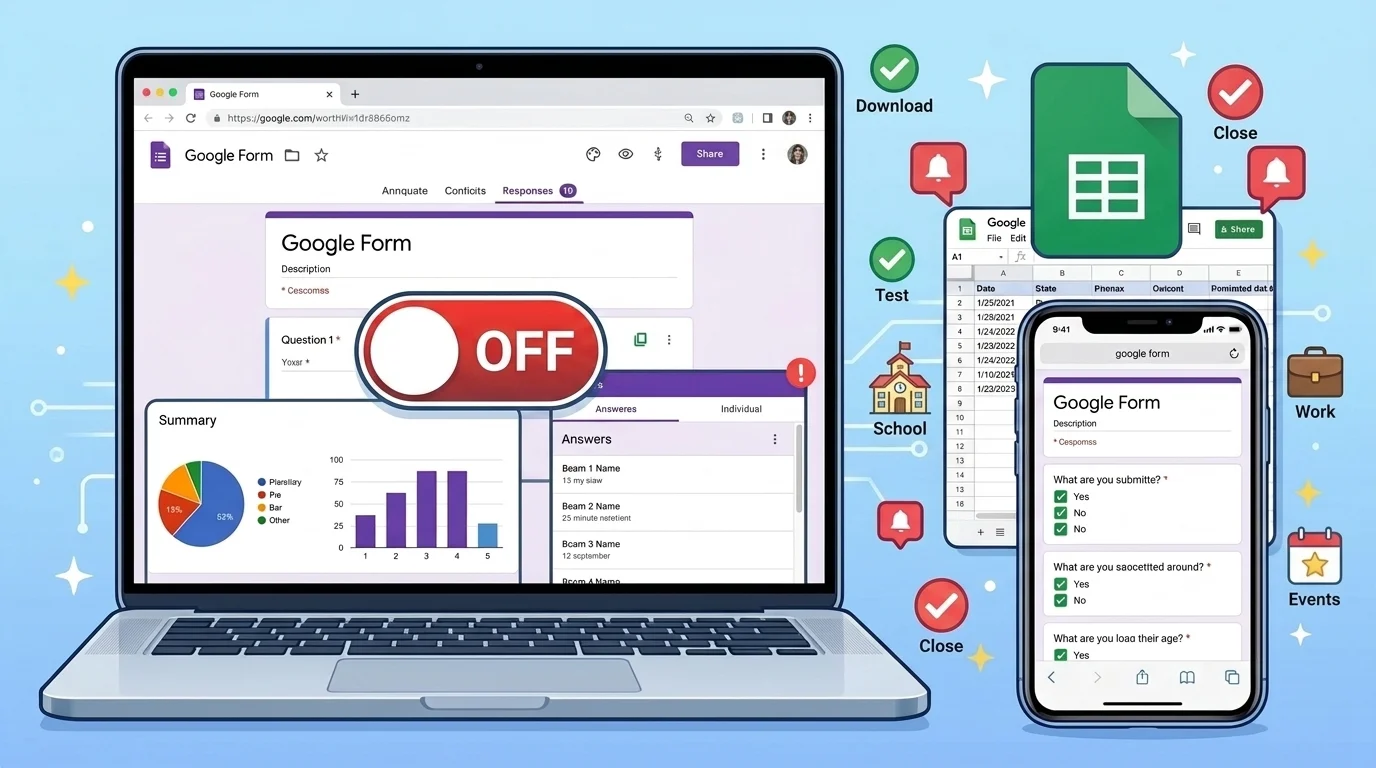
Open your Google Form, go to Responses, and toggle off Accepting responses. Done.
Top alternatives: Responses tab toggle, Settings > Responses switch, Apps Script auto-close, form add-on, unpublish form.
So you need to know how to stop accepting responses on Google Form before your inbox floods with late entries? Maybe your event ended, your survey hit its target, or your giveaway winner is already chosen. Whatever the reason, closing a form should feel simple, not like a tech puzzle.
Google Forms is easy to use, but the close button is not always obvious. If you leave it open, people can keep submitting, and that can mess with your data. This guide gives you 150+ tips, steps, and fixes so you can close any form with confidence.
Quick and Easy Method
- Open the form and click the Responses tab
Example: Use this when you want the fastest close button.
Meaning: The Responses tab holds the main switch for accepting entries. - Find the Accepting responses toggle
Example: Look near the top of the Responses page.
Meaning: This toggle controls whether new submissions can come in. - Switch the toggle to off
Example: Click it once and watch it turn gray.
Meaning: This instantly stops new responses. - Confirm the form is closed
Example: Open the live link in a new tab.
Meaning: You will see that the form no longer accepts entries. - Use Settings as a backup route
Example: Go to Settings, then Responses if the toggle is hard to find.
Meaning: This route leads to the same control. - Close on desktop for full control
Example: Use a laptop when you need to check every setting.
Meaning: Desktop view shows more options clearly. - Close on mobile web if you are in a rush
Example: Open Chrome, request desktop site, then toggle off.
Meaning: Mobile web works when the app lacks the switch. - Bookmark the Responses page
Example: Save it before a big launch or deadline.
Meaning: You can close the form in seconds later. - Tell your team before you close
Example: Send a quick message in Slack or WhatsApp.
Meaning: It prevents confusion and duplicate forms. - Download responses before closing
Example: Export to Google Sheets or CSV first.
Meaning: You keep all data safe and ready. - Test the closed link yourself
Example: Submit a fake answer after closing.
Meaning: You confirm the form truly stopped. - Reopen only when you are ready
Example: Flip the toggle back on for a new round.
Meaning: You stay in control of your collection window.
Step-by-Step Desktop Guide
- Sign in to Google Forms on desktop
Example: Go to forms.google.com in your browser.
Meaning: You need account access to edit the form. - Open the exact form you want to close
Example: Choose from Recent forms or search by name.
Meaning: This avoids closing the wrong form. - Click the Responses tab at the top
Example: It sits next to Questions and Settings.
Meaning: This is the main dashboard for submissions. - Locate the Accepting responses switch
Example: It appears above the summary charts.
Meaning: This is the official on and off control. - Turn the switch off
Example: Click it so it no longer shows blue.
Meaning: New submissions are blocked right away. - Check the confirmation screen
Example: Open the form link in an incognito window.
Meaning: You see the closed message instead of questions. - Review your response sheet link
Example: Click the green Sheets icon if you use one.
Meaning: Your existing data stays connected and safe. - Send a final notice if needed
Example: Email participants that the form is now closed.
Meaning: It keeps everyone informed and reduces questions. - Update any embedded form
Example: If the form is on a website, refresh the page.
Meaning: Visitors will see the closed state. - Check shared links
Example: Test the link you posted on social media.
Meaning: You confirm all public routes are closed. - Remove the form from active pages
Example: Hide the embed or replace it with a thank-you note.
Meaning: It prevents confusion for new visitors. - Keep the form for records
Example: Do not delete it if you need old answers.
Meaning: You can reopen or review it later.
Mobile-Friendly Method
- Open Google Forms in your mobile browser
Example: Use Chrome or Safari on your phone.
Meaning: The mobile site gives you access to settings. - Request desktop site if needed
Example: Tap the three dots and choose Desktop site.
Meaning: This reveals the full Responses toggle. - Sign in to the correct Google account
Example: Check the profile icon before editing.
Meaning: You avoid changing the wrong form. - Open the form from the menu
Example: Tap the three lines and pick your form.
Meaning: You reach the editor on a small screen. - Go to the Responses tab
Example: Scroll right if the tabs are cut off.
Meaning: This is where the close control lives. - Turn off Accepting responses
Example: Tap the toggle once.
Meaning: New entries stop immediately. - Refresh the live form link
Example: Open the link in a new tab.
Meaning: You see the closed message. - Use the Google Forms app for quick checks
Example: View responses but switch to browser to close.
Meaning: The app may not show every control. - Tell collaborators on mobile
Example: Send a quick group chat update.
Meaning: Everyone knows the form is closed. - Download responses later on desktop
Example: Wait until you are at a computer for exports.
Meaning: Large exports are easier on a bigger screen. - Avoid editing questions after closing
Example: Do not change wording if you may reopen.
Meaning: It keeps your data consistent. - Reopen from mobile if needed
Example: Flip the toggle back on in desktop mode.
Meaning: You can restart collection from anywhere.
Beginner-Friendly Walkthrough
- Start at forms.google.com
Example: Type the address into your browser.
Meaning: This is the home base for all your forms. - Pick the form with a blank template or existing one
Example: Click the form you already made.
Meaning: You need an existing form to close. - Look for the Responses tab
Example: It is at the top of the editor.
Meaning: Beginners often miss this because it is not in Settings only. - Find the switch that says Accepting responses
Example: It is near the top of the Responses page.
Meaning: This is the exact control you need. - Click the switch to turn it off
Example: The color changes when it is off.
Meaning: The form stops taking new answers. - Do not delete the form
Example: Keep it in your Google Drive.
Meaning: Deleting removes responses and links. - Test with a private window
Example: Paste the link in incognito mode.
Meaning: You see what new users see. - Check your email notifications
Example: Look for new response alerts after closing.
Meaning: You confirm no new alerts come in. - Share the closed status with your group
Example: Post a short update in your class or team chat.
Meaning: People stop asking why the form is not working. - Save the response sheet
Example: Open the linked Google Sheet.
Meaning: Your data stays available for review. - Make a copy before big changes
Example: Use File, then Make a copy.
Meaning: You keep a backup of the form and settings. - Practice closing a test form
Example: Create a dummy form and toggle it off.
Meaning: You build confidence without risking real data.
Professional Settings Route
- Open your form and go to Settings
Example: Click the Settings tab at the top.
Meaning: This route is clean for work accounts. - Select the Responses section
Example: Look for Responses in the left menu.
Meaning: It groups all response controls together. - Find Accepting responses
Example: It appears as a toggle in that section.
Meaning: This is the official close option. - Turn it off for a polished close
Example: Use this when you need a formal process.
Meaning: It looks intentional and organized. - Set a custom confirmation message first
Example: Edit the message before you close.
Meaning: People who already submitted see a clear thank you. - Notify stakeholders
Example: Email your manager or client.
Meaning: Everyone knows the collection period ended. - Archive the response sheet
Example: Move the linked sheet to an archive folder.
Meaning: It keeps your workspace tidy. - Document the close date
Example: Add a note in your project management tool.
Meaning: You have a record for audits or reports. - Check permissions
Example: Make sure only editors can reopen the form.
Meaning: It prevents accidental restarts. - Update your website or portal
Example: Remove the form embed or add a closed notice.
Meaning: Visitors get accurate information. - Respond to late requests
Example: Offer a new form if you need more entries.
Meaning: You handle exceptions professionally. - Review results after closing
Example: Analyze data once submissions stop.
Meaning: You get a clean snapshot for decisions.
Teacher and Classroom Tips
- Close the quiz after the deadline
Example: Toggle off Accepting responses when time is up.
Meaning: It keeps grading fair for everyone. - Tell students before you close
Example: Post a reminder in Google Classroom.
Meaning: They know the exact cutoff. - Use a clear class announcement
Example: Say the form closes at 3 PM sharp.
Meaning: It reduces late submission stress. - Check for missing work first
Example: Review the response sheet before closing.
Meaning: You can follow up with students who did not submit. - Close after the test window
Example: Turn off responses once all students finish.
Meaning: It prevents answers from leaking. - Keep a copy for each class
Example: Make a separate form per period.
Meaning: You can close one class without affecting others. - Download grades before closing
Example: Export to Sheets and save.
Meaning: You have a backup for report cards. - Reopen for absent students only
Example: Flip the toggle on for a short makeup window.
Meaning: You give fair access without extending everyone. - Use the locked mode for quizzes
Example: Turn it on before students start.
Meaning: It adds another layer of test security. - Share a closed message
Example: Tell students to email you if they missed it.
Meaning: They know the next step. - Avoid deleting the form
Example: Keep it for parent conferences or records.
Meaning: You can show evidence if needed. - Review settings after closing
Example: Double check that responses are off.
Meaning: You avoid accidental submissions.
Event Planner Tactics
- Close RSVP forms after the final headcount
Example: Turn off responses once you confirm numbers.
Meaning: It stops changes after you order supplies. - Set a clear RSVP deadline
Example: Mention the close date in the invitation.
Meaning: Guests know when to respond. - Send a reminder before closing
Example: Email or text one day before the cutoff.
Meaning: It boosts response rates. - Close the form before the event
Example: Toggle off on the morning of setup.
Meaning: You work from a final list. - Download the guest list
Example: Export to Sheets or CSV.
Meaning: You have check-in data ready. - Update the event page
Example: Replace the form with a thank-you note.
Meaning: Visitors see that RSVPs are closed. - Handle late requests manually
Example: Add them to your list outside the form.
Meaning: You stay flexible without reopening. - Close vendor forms separately
Example: Use different forms for vendors and guests.
Meaning: You can close each at the right time. - Check embedded forms on your site
Example: Refresh the page after closing.
Meaning: The live site shows the closed state. - Tell your team
Example: Share the final list in a group chat.
Meaning: Everyone works from the same data. - Keep the form for next year
Example: Make a copy and update dates.
Meaning: You save setup time later. - Reopen only for a waitlist
Example: Use a new form for waitlist signups.
Meaning: You keep your main list clean.
Small Business Use Cases
- Close order forms when capacity is full
Example: Turn off responses after you hit your limit.
Meaning: It prevents overselling. - Stop accepting survey entries after the target
Example: Toggle off once you get enough feedback.
Meaning: It keeps your data manageable. - Close giveaway forms after the deadline
Example: Switch off responses at midnight.
Meaning: It keeps the contest fair. - Notify customers on social media
Example: Post that the form is now closed.
Meaning: It reduces repeated questions. - Update your link in bio
Example: Remove the form link or replace it.
Meaning: Followers do not hit a closed page. - Download leads before closing
Example: Export to your CRM or Sheets.
Meaning: You can follow up without delays. - Use a new form for the next round
Example: Make a copy for the next giveaway.
Meaning: You keep old data separate. - Check your email notifications
Example: Confirm no new responses arrive.
Meaning: You know the form is truly closed. - Respond to late entries politely
Example: Tell them the form closed but offer updates.
Meaning: You protect your brand reputation. - Keep the form for records
Example: Do not delete it if you need proof.
Meaning: You can review entries later. - Test the link from a customer view
Example: Open it in a private window.
Meaning: You see the exact closed message. - Reopen for a flash sale if needed
Example: Turn responses back on for 24 hours.
Meaning: You can run a quick second round.
Freelancer and Client Forms
- Close intake forms when your schedule is full
Example: Toggle off Accepting responses.
Meaning: It protects your workload. - Add a note before closing
Example: Update the form description with a closed message.
Meaning: Clients understand the status. - Send a final confirmation to clients
Example: Email everyone who submitted.
Meaning: They know their request was received. - Download responses to a project folder
Example: Export to Sheets or CSV.
Meaning: You keep client info organized. - Update your website contact page
Example: Replace the form with an email link.
Meaning: New leads have a clear next step. - Use a waitlist form instead
Example: Create a new form for future openings.
Meaning: You still capture demand. - Close after a project deadline
Example: Turn off responses once the brief window ends.
Meaning: You get clean project scopes. - Check for duplicate submissions
Example: Review the sheet before closing.
Meaning: You avoid double work. - Notify your virtual assistant
Example: Share that the form is closed.
Meaning: They can answer client questions. - Keep the form for templates
Example: Save a copy for your next client round.
Meaning: You reuse your best questions. - Test the client link
Example: Open it in incognito mode.
Meaning: You confirm the closed state. - Reopen for a VIP client if needed
Example: Turn it on briefly for a special request.
Meaning: You stay flexible without chaos.
Team Lead and Internal Forms
- Close feedback forms after the review cycle
Example: Toggle off once the deadline passes.
Meaning: You get a clean data set. - Announce the close in a team meeting
Example: Say the form closes Friday at 5 PM.
Meaning: Everyone has a clear deadline. - Send a final reminder
Example: Post in Slack or Teams one hour before.
Meaning: You reduce missed submissions. - Download responses for HR or management
Example: Export to Sheets and share securely.
Meaning: You keep a record for decisions. - Close anonymous forms carefully
Example: Confirm you have enough responses first.
Meaning: You protect trust and confidentiality. - Update the internal wiki
Example: Remove the form link or mark it closed.
Meaning: Employees do not use an old link. - Use a new form for the next cycle
Example: Make a copy and change the title.
Meaning: You keep each cycle separate. - Check permissions before closing
Example: Make sure only admins can reopen.
Meaning: You prevent accidental changes. - Respond to late feedback
Example: Offer a direct email option.
Meaning: You still hear important concerns. - Archive the response sheet
Example: Move it to a completed folder.
Meaning: Your workspace stays clean. - Test the form from an employee view
Example: Open the link in a private window.
Meaning: You confirm it is closed. - Review results after closing
Example: Analyze trends once data is final.
Meaning: You make better decisions.
Nonprofit and Volunteer Forms
- Close volunteer signups when shifts are full
Example: Toggle off Accepting responses.
Meaning: You avoid overbooking. - Post a thank-you message
Example: Update your page after closing.
Meaning: Volunteers feel appreciated. - Send a confirmation to everyone
Example: Email the final schedule.
Meaning: People know their shift details. - Download the volunteer list
Example: Export to Sheets or CSV.
Meaning: You have check-in data ready. - Close donation forms after a campaign
Example: Turn off responses when the drive ends.
Meaning: You get a clean fundraising total. - Update your social media links
Example: Remove the form from your bio.
Meaning: Supporters do not hit a closed page. - Keep a waitlist form
Example: Create a new form for future events.
Meaning: You still capture interest. - Check for duplicate signups
Example: Review the sheet before closing.
Meaning: You plan accurate numbers. - Tell your team
Example: Share the final list in a group chat.
Meaning: Everyone works from the same info. - Archive the form
Example: Keep it for grant reports or audits.
Meaning: You have records if needed. - Test the link
Example: Open it in a private window.
Meaning: You confirm the closed message appears. - Reopen for a new campaign
Example: Make a copy and update the details.
Meaning: You save time on setup.
Student and Personal Forms
- Close club signup forms after the deadline
Example: Toggle off responses once spots are filled.
Meaning: You keep the group organized. - Close party RSVP forms before the event
Example: Turn off responses two days before.
Meaning: You give the host a final count. - Close survey forms for school projects
Example: Stop responses once you hit your target.
Meaning: You can start analyzing data. - Tell your friends in the group chat
Example: Send a quick message that the form is closed.
Meaning: No one submits late. - Download responses to your drive
Example: Export to Google Sheets.
Meaning: You keep your project data safe. - Update your story or status
Example: Post that the form is now closed.
Meaning: Followers know the status. - Use a new form for the next event
Example: Make a copy and change the title.
Meaning: You keep old and new data separate. - Check for test submissions
Example: Review the sheet before closing.
Meaning: You remove fake entries. - Test the link from a friend’s phone
Example: Open it in a private tab.
Meaning: You see what others see. - Keep the form for memories
Example: Save it in a folder.
Meaning: You can look back at old responses. - Reopen if you need more entries
Example: Flip the toggle back on.
Meaning: You stay flexible. - Do not delete unless you are sure
Example: Deleting removes responses too.
Meaning: You avoid losing important data.
Troubleshooting Fixes
- Toggle is missing
Example: Refresh the page or use desktop mode.
Meaning: The control may not load on some mobile views. - Form still accepts responses after closing
Example: Check if you closed the right form.
Meaning: You may have multiple copies open. - Embedded form still works
Example: Clear your website cache or refresh the page.
Meaning: The old version may still be cached. - Shared link still opens
Example: Test in incognito mode.
Meaning: Your browser may show a saved version. - Collaborators can still edit
Example: Check sharing permissions.
Meaning: They might reopen the form by mistake. - Responses still appear in Sheets
Example: Confirm the form is actually closed.
Meaning: Old responses may still sync. - You cannot find Settings
Example: Use the Responses tab instead.
Meaning: The toggle is also there. - Mobile app lacks the switch
Example: Use a mobile browser in desktop mode.
Meaning: You get full control. - Form says no longer accepting
Example: That means it is closed correctly.
Meaning: You can reopen it if needed. - You closed the wrong form
Example: Reopen it and close the correct one.
Meaning: You fix the mistake quickly. - People keep emailing for access
Example: Send a clear closed notice.
Meaning: You reduce confusion. - You need to reopen temporarily
Example: Turn the toggle back on.
Meaning: You can collect more responses.
Mistakes to Avoid
- Do not delete the form to close it
Example: Use the toggle instead.
Meaning: Deleting removes all responses. - Do not forget to download data first
Example: Export to Sheets before closing.
Meaning: You keep a backup. - Do not close without telling people
Example: Send a quick announcement.
Meaning: You avoid confusion and anger. - Do not assume the embed updates instantly
Example: Refresh the page or clear cache.
Meaning: Old versions may still show. - Do not ignore shared links
Example: Check social media and websites.
Meaning: Old links can still be clicked. - Do not let everyone reopen the form
Example: Limit editor permissions.
Meaning: You prevent accidental restarts. - Do not change questions after closing
Example: Keep the form as is if you may reopen.
Meaning: You keep data consistent. - Do not forget mobile users
Example: Test the closed link on a phone.
Meaning: You ensure everyone sees the closed message. - Do not rely on memory
Example: Write down the close date.
Meaning: You have a record for later. - Do not close a form mid-submission
Example: Warn users before the cutoff.
Meaning: You reduce frustration. - Do not use the wrong Google account
Example: Check the profile icon.
Meaning: You avoid editing the wrong form. - Do not skip the test
Example: Open the link in incognito mode.
Meaning: You confirm the form is truly closed.
Pro Tips and Automation
- Use Apps Script to close by date
Example: Write a time-driven trigger to turn off responses.
Meaning: You can automate deadlines. - Use Apps Script to close after a number
Example: Set a script to run when responses hit your limit.
Meaning: You control volume without manual work. - Use add-ons for advanced limits
Example: Explore form add-ons for auto-close features.
Meaning: You get extra control beyond native settings. - Create a reusable close checklist
Example: List download, notify, toggle, test.
Meaning: You never miss a step. - Set a calendar reminder
Example: Add a reminder for the close date.
Meaning: You do not forget to stop responses. - Use a custom confirmation message
Example: Edit the thank-you note before closing.
Meaning: People who submitted get a polished experience. - Keep a master response sheet
Example: Move all exports to one folder.
Meaning: You stay organized across projects. - Use version history
Example: Check File, then Version history.
Meaning: You can see when changes were made. - Test with a dummy form first
Example: Practice the close process.
Meaning: You build confidence before the real thing. - Document your reopen process
Example: Write down how to turn responses back on.
Meaning: You can restart quickly if needed. - Use a waitlist form
Example: Create a second form for late interest.
Meaning: You capture demand without reopening. - Review your close settings quarterly
Example: Check old forms for accidental open status.
Meaning: You keep your data secure and clean.
FAQs
How do I stop accepting responses on Google Form?
Open the form, go to Responses, and toggle off Accepting responses. You can also find it in Settings, then Responses.
Can I close a Google Form on my phone?
Yes, use a mobile browser and request desktop site. The app may not show the toggle.
Does closing a form delete responses?
No. Closing only stops new entries. Your existing responses stay safe.
Can I set a response limit?
Google Forms does not have a native limit. You can use Apps Script or an add-on.
Can I close a form automatically after a date?
Not natively. Use Google Apps Script with a time-driven trigger.
What do people see when my form is closed?
They see a message that the form is no longer accepting responses.
Can I reopen a closed form?
Yes. Go back to Responses and turn Accepting responses back on.
Is it okay to close a form without notice?
It is better to tell people first. A quick message prevents confusion.
Does closing a form affect my Google Sheet?
No. The sheet keeps all existing responses.
Can I stop responses for one section only?
No. Closing stops the entire form. Use separate forms for separate sections.
Conclusion
Closing a Google Form does not have to be a tech headache. One toggle can protect your data, end a contest, or wrap up a survey with zero stress. The key is to download responses first, tell your people, and test the link after you close it. Whether you are a teacher, planner, business owner, or student, the right close process keeps you in control. Try the steps that fit your situation, save this guide for later, and share it with anyone who lives in Google Forms. Your future self will thank you. Now go close that form like a pro.
