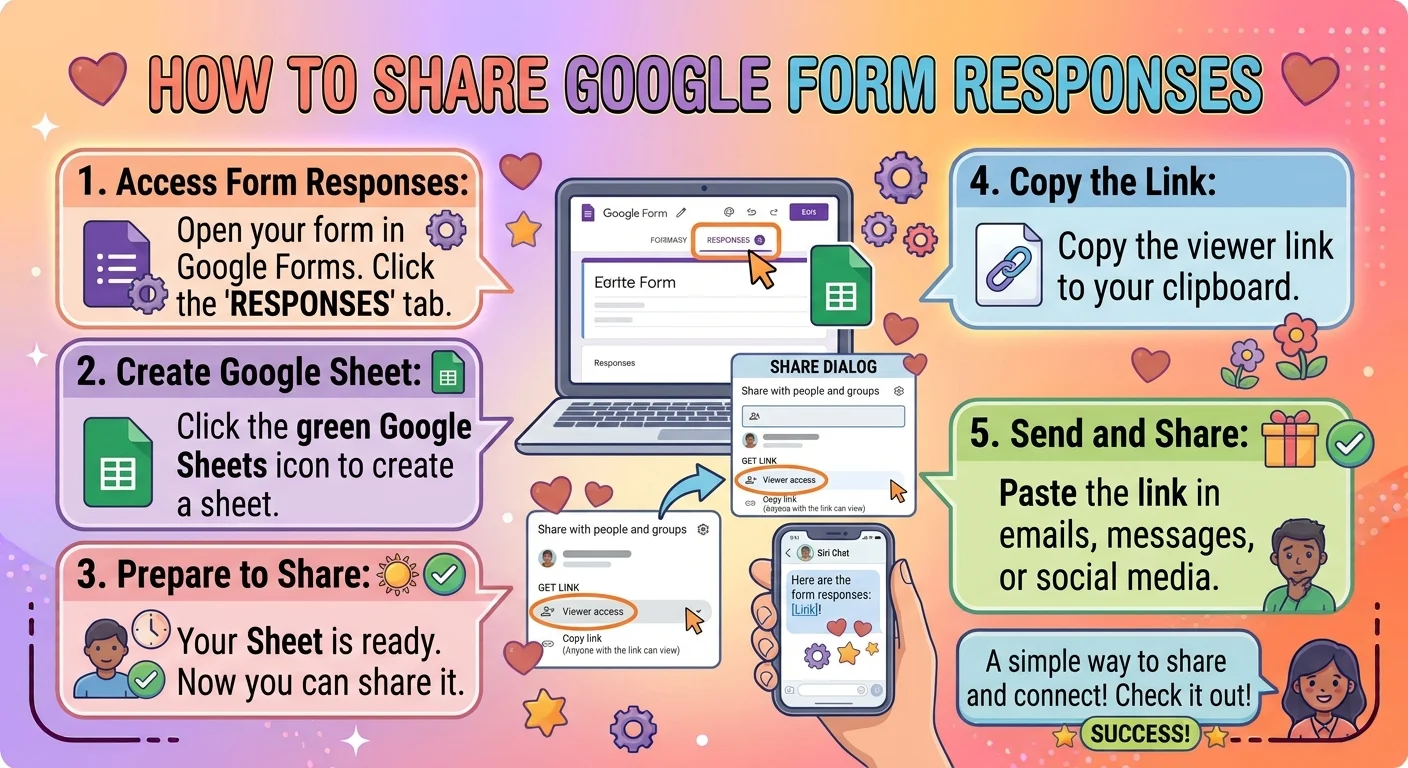
To share Google Form responses, open the Responses tab, click View in Sheets, then use Share to give specific people view only access. The cleanest route is a restricted Sheet link sent with one short note about which tab to open.
You finally collected all your Google Form responses and now three different people want to see them, and you are staring at a link wondering if you are about to hand over edit access to the entire internet. Knowing how to share Google Form responses properly saves you from accidental edits, leaked personal details, and awkward “can you resend that” messages. It is a small skill that quietly protects your work.
The good news is that sharing is not complicated once you know which option fits the moment. Sometimes a screenshot is enough. Sometimes you need a filtered view for one client. Sometimes you need a locked file for a whole department.
This guide gives you 180+ practical moves, sorted by situation, so you can pick the right one instead of guessing.
Quick and Easy Sharing Methods
- Open your form, tap Responses, then click the green Sheets icon.
Example: When a teammate asks for the raw answers five minutes before a call.
Meaning: It creates the live spreadsheet you can share in one click. - Share the linked Sheet link instead of the form link.
Example: When someone keeps opening the form and filling it in again.
Meaning: It sends people straight to the data, not the questionnaire. - Set the Sheet to view only before you send it.
Example: When you want people to read answers without changing them.
Meaning: It protects your data from accidental edits. - Send a screenshot of the Summary view for a fast update.
Example: When someone just needs the totals in a group chat.
Meaning: It answers the question in seconds with zero setup. - Use Share in Sheets and add email addresses directly.
Example: When only three specific people need access.
Meaning: It keeps the file limited to the right audience. - Turn on link sharing only when the audience is broad and low risk.
Example: When a whole department needs visibility.
Meaning: It removes the friction of adding people one by one. - Copy the Sheet link and paste it with one line of context.
Example: When the link lands in a busy chat and needs a label.
Meaning: It tells people what to look at instead of leaving them guessing. - Add a short note about which tab to open first.
Example: When your Sheet has several tabs and one matters most.
Meaning: It saves readers from clicking around. - Share the CSV download for people outside your workspace.
Example: When a vendor cannot open a Google link.
Meaning: It delivers the data in a format anyone can open. - Publish the Sheet to the web when you need a public read only page.
Example: When you want answers visible without a Google sign in.
Meaning: It creates a clean link that works for everyone. - Use the same sharing routine every time so it becomes a habit.
Example: When you share responses weekly.
Meaning: It removes repeated decisions and speeds things up. - Keep a saved template message so you never retype the explanation.
Example: When you send response links to clients often.
Meaning: It makes sharing consistent and quick.
Sharing With Individuals and Small Groups
- Share with specific email addresses instead of a public link.
Example: When only the project lead and one analyst need the data.
Meaning: It limits access to named people only. - Choose Commenter access when you want feedback but not edits.
Example: When someone needs to flag a strange answer.
Meaning: It allows discussion without risking your data. - Send a filtered view link to each person.
Example: When each teammate only cares about their own region.
Meaning: It gives everyone a relevant slice instead of the full sheet. - Share one person’s answers only when that person asks.
Example: When a respondent requests a copy of their own submission.
Meaning: It respects privacy while being helpful. - Add a personal line explaining what you need from them.
Example: When you are asking someone to review answers.
Meaning: It turns a bare link into a clear ask. - Send the link in the channel you already use with that person.
Example: When you chat with them on WhatsApp instead of email.
Meaning: It keeps the handoff natural and easy to find. - Share a PDF copy when the person only needs to read.
Example: When a client wants a tidy document instead of a spreadsheet.
Meaning: It presents the data without exposing the live file. - Give temporary access and remove it once the task is done.
Example: When an outside reviewer joins for one project.
Meaning: It keeps your data safe after the work ends. - Send screenshots of the Summary charts for tiny requests.
Example: When someone just wants the headline number.
Meaning: It avoids a full sharing setup for a quick question. - Keep a short list of who has access to what.
Example: When you share the same Sheet with many people.
Meaning: It prevents accidental oversharing later. - Share a filtered view when asked about a single entry.
Example: When a colleague asks about one specific submission.
Meaning: It answers precisely without exposing everything. - Offer a quick walkthrough if the person is new to Sheets.
Example: When a client opens the link and sounds confused.
Meaning: It turns a shared file into a shared understanding.
Team and Colleague Sharing
- Share the Sheet with your whole team in view only mode.
Example: When everyone needs visibility but nobody should edit.
Meaning: It keeps data integrity intact. - Create a filter view per team member and share the Sheet once.
Example: When each person owns a different section.
Meaning: It reduces confusion without multiple files. - Pin the Sheet link in your team channel.
Example: When people ask for the link every single week.
Meaning: It makes access permanent and easy. - Add a summary tab with key numbers for quick reading.
Example: When the team only needs totals during standups.
Meaning: It saves everyone from scrolling the raw data. - Share a weekly digest message with the top numbers.
Example: When leadership wants a snapshot without opening a file.
Meaning: It delivers insight with no extra clicks. - Use a shared drive folder so access is automatic for the team.
Example: When new members join the project regularly.
Meaning: It removes the need to share file by file. - Tell people which columns are locked and why.
Example: When the team keeps asking about greyed out cells.
Meaning: It prevents unnecessary edit requests. - Set the file to notify you when someone comments.
Example: When feedback arrives and you want to catch it early.
Meaning: It keeps conversations moving without constant checking. - Assign one editor and keep everyone else as a viewer.
Example: When too many editors create version chaos.
Meaning: It keeps a single clean source of truth. - Share the link with a clear subject line in email.
Example: When the message could otherwise be ignored.
Meaning: It increases the odds people actually open it. - Keep a change log tab so the team knows what shifted.
Example: When answers get cleaned or corrected.
Meaning: It builds trust in the data. - Ask for confirmation that the share worked.
Example: When a deadline depends on someone reading the data.
Meaning: It closes the loop instead of assuming.
Client and Stakeholder Sharing
- Share a view only Sheet with a short header note.
Example: When the client expects a polished deliverable.
Meaning: It looks professional while protecting the data. - Send a PDF summary alongside the link.
Example: When the client prefers reading over clicking.
Meaning: It gives them a clean version with no learning curve. - Remove internal notes and test rows before sharing.
Example: When your working Sheet has scratch columns.
Meaning: It prevents embarrassing details from reaching the client. - Share a filtered view that hides other clients’ answers.
Example: When one form serves several clients.
Meaning: It protects confidentiality while still delivering results. - Add a one line explanation of what each tab contains.
Example: When the client is opening the file for the first time.
Meaning: It reduces back and forth questions. - Use a formal access request instead of an open link.
Example: When the data is sensitive or regulated.
Meaning: It creates a record of who has seen what. - Offer a short call to walk through the findings.
Example: When numbers need context to make sense.
Meaning: It turns raw data into an actual conversation. - Share the export only after confirming the file opens.
Example: When the client uses a different spreadsheet program.
Meaning: It avoids the awkward “this will not open” reply. - Set an expiry on the shared link when possible.
Example: When access is only needed for a review period.
Meaning: It limits long term exposure of sensitive answers. - Keep client shared files in a dedicated folder per account.
Example: When you manage many clients at once.
Meaning: It makes sharing faster and less error prone. - Confirm which format they want before sending anything.
Example: When you are unsure if they prefer Sheets, Excel, or PDF.
Meaning: It avoids redoing the share twice. - Follow up once if you do not hear back.
Example: When a decision depends on their review.
Meaning: It keeps the project moving politely.
Teacher and Classroom Sharing
- Share a view only Sheet with co teachers and admin.
Example: When a department needs to review quiz results.
Meaning: It keeps grades visible without risking edits. - Create a separate Sheet per class before sharing.
Example: When multiple sections use the same form.
Meaning: It prevents mixing students from different groups. - Share individual results with each student privately.
Example: When a learner asks for their own score.
Meaning: It respects privacy while being responsive. - Add a score column before sharing with the gradebook team.
Example: When admin needs marks in a set format.
Meaning: It makes the data usable on arrival. - Export a CSV for the school system and share that file.
Example: When the platform cannot read a Google link.
Meaning: It delivers data in the required format. - Hide the email column when sharing with the class.
Example: When students will see each other’s submissions.
Meaning: It protects personal details. - Share the Summary view with the class to discuss trends.
Example: When most students missed the same question.
Meaning: It turns results into a teaching moment. - Give parents a PDF copy of their child’s responses only.
Example: When a parent requests an update.
Meaning: It keeps the conversation focused and private. - Use a shared folder for the whole term.
Example: When you will share results repeatedly.
Meaning: It makes every future share one click. - Note which questions were graded manually.
Example: When a colleague reviews the results later.
Meaning: It prevents confusion about missing marks. - Share a filtered view for late submissions.
Example: When you need to chase missing work.
Meaning: It isolates the rows that matter. - Keep the master file locked and share copies for edits.
Example: When multiple teachers adjust formatting.
Meaning: It protects your original dataset.
Event Planner Sharing
- Share the RSVP Sheet with your co host in view only mode.
Example: When two people are running the same event.
Meaning: It keeps both of you looking at the same numbers. - Export the guest list to CSV and send it to the venue.
Example: When the caterer needs a final headcount.
Meaning: It delivers exactly what they asked for. - Share a filtered view for dietary restrictions only.
Example: When the kitchen needs specific details.
Meaning: It gives the vendor only relevant information. - Send screenshots of the count to your group chat.
Example: When friends keep asking how many people are coming.
Meaning: It answers fast without a full setup. - Create a view that hides phone numbers before sharing widely.
Example: When the guest list leaves your inner circle.
Meaning: It protects attendee privacy. - Share a read only link with the venue coordinator.
Example: When they need to check details themselves.
Meaning: It reduces back and forth messages. - Add a confirmed column and share it with your team.
Example: When you are tracking who actually replied.
Meaning: It turns the Sheet into a live checklist. - Send a PDF copy for the day of the event.
Example: When wifi might be unreliable at the venue.
Meaning: It gives you an offline backup. - Share the plus one details separately.
Example: When headcount depends on guests bringing someone.
Meaning: It keeps the final number accurate. - Use a folder per event so sharing stays organized.
Example: When you plan several events a year.
Meaning: It makes old files easy to find. - Confirm the venue received the file before the deadline.
Example: When numbers are due in advance.
Meaning: It prevents last minute surprises. - Put the key numbers at the top of your summary message.
Example: When the recipient is busy and skimming.
Meaning: It delivers the important part first.
Spreadsheet Sharing Methods
- Use File then Share to add people by email.
Example: When you want precise control over access.
Meaning: It is the most direct way to share a Sheet. - Choose Viewer, Commenter, or Editor based on the task.
Example: When someone needs to add notes but not change data.
Meaning: It matches access to actual need. - Copy the link from the Share dialog instead of the address bar.
Example: When you are not sure the address bar link is shareable.
Meaning: It ensures the link actually works for others. - Turn off editing for anyone with the link when data is sensitive.
Example: When the file goes to a large group.
Meaning: It prevents accidental changes. - Use Protect range to lock columns before sharing for edits.
Example: When people need to add notes but not touch answers.
Meaning: It keeps the source data intact. - Make the relevant tab active before copying the link.
Example: When only the summary tab matters.
Meaning: It drops people directly where they need to be. - Send the Sheet as an Excel file for non Google users.
Example: When a partner team uses Microsoft tools.
Meaning: It removes the compatibility barrier. - Publish to web for a clean read only page with no toolbar.
Example: When you are embedding results on a site.
Meaning: It gives a simple display version. - Add a named version before sharing a big update.
Example: When you want a restore point if edits go wrong.
Meaning: It protects your data during collaboration. - Use a filter view link when sharing a specific segment.
Example: When one person only needs their region.
Meaning: It gives them a tailored view without a new file. - Check the Share settings before every new recipient.
Example: When you are not sure who already has access.
Meaning: It prevents accidental oversharing. - Remove old collaborators once a project wraps.
Example: When a contractor finishes their work.
Meaning: It keeps access tidy and secure.
Privacy and Permission Control
- Set the Sheet to restricted before adding anyone.
Example: When your data includes personal details.
Meaning: It ensures access is granted deliberately. - Share only the columns people need.
Example: When a partner needs counts but not names.
Meaning: It follows the principle of least access. - Hide rows and columns that contain sensitive information.
Example: When the file has internal notes.
Meaning: It keeps the visible data clean and safe. - Avoid sharing the form edit link by accident.
Example: When someone could change your questions.
Meaning: It protects the form itself, not just the answers. - Check whether your settings allow downloads.
Example: When the data should not leave the organization.
Meaning: It limits how far the data can travel. - Use a separate Sheet for external sharing.
Example: When you need to strip internal commentary.
Meaning: It keeps your master file untouched. - Ask before adding a new person to a shared file.
Example: When a teammate forwards the link to someone else.
Meaning: It keeps access decisions deliberate. - Review access monthly for long running projects.
Example: When team members change roles.
Meaning: It prevents stale permissions from piling up. - Share aggregated numbers instead of raw rows when possible.
Example: When the audience only needs totals.
Meaning: It reduces exposure of individual answers. - Document your sharing policy in one short page.
Example: When the team keeps asking what is allowed.
Meaning: It makes safe sharing the default. - Test the link in a private window before sending.
Example: When you want to see what an outsider sees.
Meaning: It confirms the permissions actually work. - Keep a log of who received which version.
Example: When you share several rounds of results.
Meaning: It gives you a clear history if questions arise.
Export and Download Sharing
- Download responses as CSV and attach the file.
Example: When the recipient needs a portable copy.
Meaning: It works regardless of their tools. - Use Excel format when the recipient relies on formulas.
Example: When a finance team will build on the data.
Meaning: It preserves compatibility with their workflow. - Export a PDF for a clean read only deliverable.
Example: When you want a polished version for a client.
Meaning: It presents data without edit risk. - Name the file clearly with the form name and date.
Example: When you send several exports over time.
Meaning: It makes files easy to find later. - Include a short note explaining the columns.
Example: When the file has fields that need context.
Meaning: It prevents confusion on the other end. - Share a folder link instead of many attachments.
Example: When you have several files to deliver.
Meaning: It keeps everything together in one place. - Clean test rows before exporting.
Example: When you filled out your own form during setup.
Meaning: It avoids sending junk data. - Keep the original export as a backup before editing.
Example: When you need to reformat for a report.
Meaning: It gives you a safe copy if something breaks. - Compress large exports before sending.
Example: When the file is too big for email.
Meaning: It gets around size limits. - Note what changed since the last version.
Example: When the recipient reviews the data regularly.
Meaning: It saves them from comparing files manually. - Confirm the recipient can open the format.
Example: When you are unsure what software they use.
Meaning: It avoids a failed delivery. - Store exports in a dated folder so sharing stays repeatable.
Example: When you send monthly reports.
Meaning: It makes future exports quick to locate.
Notification and Auto Sharing
- Turn on email notifications so you know when to share.
Example: When a client expects a quick update after each submission.
Meaning: It keeps your sharing timely. - Forward new responses to a shared inbox.
Example: When a team handles submissions together.
Meaning: It distributes information automatically. - Use a scheduled summary email for recurring reports.
Example: When leadership wants a weekly digest.
Meaning: It removes manual sending from your routine. - Create a filter that triggers a notification for certain answers.
Example: When urgent requests need immediate attention.
Meaning: It routes important items faster. - Set a recurring reminder to share the latest numbers.
Example: When the same audience expects an update every Monday.
Meaning: It makes sharing predictable. - Set the Sheet to notify you of comments.
Example: When reviewers leave notes asynchronously.
Meaning: It keeps feedback from getting lost. - Keep the link in a pinned team message.
Example: When the same chat asks for it weekly.
Meaning: It answers the question before it is asked. - Add a note in your calendar after each share.
Example: When you need to remember what was sent when.
Meaning: It creates a lightweight record. - Use a versioned export schedule for compliance.
Example: When your industry requires periodic records.
Meaning: It keeps documentation consistent. - Point people to a shared folder that updates automatically.
Example: When your team checks the same location daily.
Meaning: It removes repeated manual sharing. - Send a heads up message before a large share goes out.
Example: When many people will receive the link at once.
Meaning: It prevents confusion and duplicate questions. - Review automation settings quarterly to make sure they still fit.
Example: When the team structure has changed.
Meaning: It keeps automatic sharing accurate.
Presentation and Reporting Sharing
- Build a summary tab and share that as the main link.
Example: When your audience cares about totals, not raw rows.
Meaning: It focuses attention on what matters. - Add charts to the Sheet before sharing.
Example: When the reader is visual.
Meaning: It makes the data easier to absorb. - Share a slide deck with screenshots of the key views.
Example: When presenting to leadership.
Meaning: It delivers the story without a live file. - Embed the published Sheet in a report or wiki page.
Example: When the results should stay visible over time.
Meaning: It creates a living display that updates itself. - Use a dashboard tab with big numbers at the top.
Example: When the same people check results weekly.
Meaning: It answers common questions in one glance. - Share one view per audience instead of one file for everyone.
Example: When sales and support care about different answers.
Meaning: It reduces noise for each reader. - Add a short written takeaway with every shared file.
Example: When the numbers need interpretation.
Meaning: It turns data into a message. - Hide the raw data tab from the presentation view.
Example: When the audience only needs the summary.
Meaning: It keeps the experience clean. - Share a printed copy for meetings without screens.
Example: When the room has no projector.
Meaning: It keeps the discussion moving. - Update the shared link rather than sending a new one each time.
Example: When results change daily.
Meaning: It keeps everyone on the same reference. - Ask for feedback on the format after the first share.
Example: When you are unsure if the layout works.
Meaning: It improves every future delivery. - Archive past reports in a folder for quick reference.
Example: When someone asks for last quarter’s numbers.
Meaning: It makes historical sharing fast.
Mobile and On the Go Sharing
- Open the Sheet in the mobile app and share from there.
Example: When you are away from your desk and someone needs access.
Meaning: It handles sharing without a laptop. - Send the link straight from your phone’s share sheet.
Example: When you are already texting the person.
Meaning: It saves copying and pasting. - Check the Summary in the Forms app and screenshot it.
Example: When you are in a meeting and need a quick number.
Meaning: It delivers a fast visual update. - Copy the link once and paste it into multiple chats.
Example: When several people ask at the same time.
Meaning: It handles repeat requests efficiently. - Download the CSV on mobile and share it through email.
Example: When someone needs the file and you are traveling.
Meaning: It delivers data from anywhere. - Pin the Sheet to your home screen for quick access.
Example: When you share it several times a day.
Meaning: It removes the search step. - Send a voice note instead of a long explanation.
Example: When you want to explain the tabs quickly.
Meaning: It adds clarity in a friendly format. - Share from a tablet during in person meetings.
Example: When you are walking someone through results.
Meaning: It makes the data easy to see together. - Keep the link saved in your notes app.
Example: When you share it on the go often.
Meaning: It gives you instant access anywhere. - Check permissions on mobile before sending.
Example: When you are not sure if editing is enabled.
Meaning: It prevents an accidental open link. - Forward the original share email instead of recreating it.
Example: When a new person joins the project.
Meaning: It keeps the access details consistent. - Confirm the link opened with a quick message.
Example: When the share happens in a hurry.
Meaning: It closes the loop even from a phone.
Security and Compliance Sharing
- Share only aggregated data when individual answers are not needed.
Example: When the report goes to a wide audience.
Meaning: It reduces privacy risk significantly. - Use restricted access for anything with personal details.
Example: When responses include emails and phone numbers.
Meaning: It keeps sensitive data controlled. - Keep an access log for regulated projects.
Example: When an audit may ask who saw the data.
Meaning: It provides a defensible record. - Remove identifiers before sharing externally.
Example: When a partner only needs trends.
Meaning: It protects respondents. - Set link expiry where your tools allow it.
Example: When access is temporary.
Meaning: It limits long term exposure. - Disable download and copy options for sensitive Sheets.
Example: When the data should not be redistributed.
Meaning: It restricts how far the file can go. - Share through an approved internal channel only.
Example: When your organization has data rules.
Meaning: It keeps sharing compliant. - Get approval before sending data outside the company.
Example: When a client asks for raw responses.
Meaning: It prevents policy violations. - Document the purpose of each share.
Example: When multiple teams request the same data.
Meaning: It creates clarity and accountability. - Check retention rules before archiving shared files.
Example: When old projects need cleanup.
Meaning: It keeps you aligned with data policies. - Use a separate external copy with limited columns.
Example: When internal notes must stay private.
Meaning: It protects internal commentary. - Review who still has access after the project closes.
Example: When contractors or clients finish up.
Meaning: It keeps permissions tight over time.
Creative and Visual Sharing
- Share an annotated screenshot with the key answers circled.
Example: When one insight matters more than the full sheet.
Meaning: It directs attention instantly. - Turn the summary charts into a shareable image.
Example: When you are posting an update in a group chat.
Meaning: It makes results easy to consume. - Build a one page snapshot tab for external sharing.
Example: When the audience only wants headlines.
Meaning: It delivers value without overwhelm. - Color code rows before sharing so patterns pop.
Example: When the reader needs to scan quickly.
Meaning: It makes the data readable at a glance. - Record a short walkthrough for complex Sheets.
Example: When the audience is new to the file.
Meaning: It replaces a long explanation with a quick demo. - Use a clean published view for public facing results.
Example: When results go on a website.
Meaning: It looks polished and stays read only. - Create a highlight tab with the best quotes from open answers.
Example: When qualitative feedback deserves attention.
Meaning: It surfaces the human side of the data. - Share a comparison view of two time periods.
Example: When you want to show progress.
Meaning: It makes change obvious. - Add icons to tabs so navigation is instant.
Example: When the Sheet has many sections.
Meaning: It makes the layout friendlier. - Build a simple one slide summary from the Sheet.
Example: When you need something visual for a meeting.
Meaning: It turns numbers into a takeaway. - Apply conditional formatting before sharing so issues stand out.
Example: When incomplete entries need attention.
Meaning: It guides the reader’s eye. - Keep a template of your best presentation view for reuse.
Example: When you share similar reports often.
Meaning: It saves setup time every cycle.
Beginner Friendly First Steps
- Start with the Responses tab and click View in Sheets.
Example: When you have never shared answers before.
Meaning: It creates the file you will actually share. - Use the Share button and type one email address.
Example: When you want to test the process safely.
Meaning: It teaches you the flow with low stakes. - Choose Viewer first, then adjust if needed.
Example: When you are unsure what access level to pick.
Meaning: It keeps the first share safe. - Send the link to yourself first as a test.
Example: When you want to see what others will see.
Meaning: It confirms the permissions work. - Ask the recipient if the link opened properly.
Example: When it is your first time sharing a Sheet.
Meaning: It builds confidence and catches mistakes. - Keep the message short and clear.
Example: When you are sharing with someone outside your team.
Meaning: It reduces confusion for both of you. - Learn one sharing option per week instead of everything at once.
Example: When the whole process feels like a lot.
Meaning: It builds skill without pressure. - Save your first shared Sheet as a reference example.
Example: When you want to repeat what worked.
Meaning: It gives you a template for next time. - Learn the difference between the form link and the Sheet link.
Example: When someone fills the form again by mistake.
Meaning: It prevents a common beginner error. - Practice with a test form and a friend.
Example: When you want to learn without affecting real data.
Meaning: It makes the process comfortable before it matters. - Keep a short checklist for your first ten shares.
Example: When you are still learning the settings.
Meaning: It prevents skipped steps. - Ask a teammate to review your sharing settings once.
Example: When you want a second set of eyes.
Meaning: It catches mistakes you might not notice.
FAQs
What does sharing Google Form responses actually mean?
It means giving other people access to the answers people submitted. You can share the live linked Sheet, a filtered view, or a downloaded copy.
Can people see responses without signing in?
Only if you publish the Sheet to the web or allow link sharing. With restricted access, people need to sign in with an approved account.
Should I share the form link or the Sheet link?
Share the Sheet link for reading answers. The form link lets people submit new responses, which is a different job entirely.
What if I only want to share a few answers?
Use a filtered view, hide sensitive columns, or export just the rows you need. You never have to share the whole dataset.
Is it okay to share raw responses with clients?
Only when it is appropriate and approved. Strip internal notes, remove test rows, and use view only access so nothing gets changed.
Can I share responses without letting anyone edit?
Yes. Set the Sheet to Viewer access before sending. If edits are needed later, upgrade the permission deliberately.
Is humor appropriate when sharing responses?
A light line in your message is fine, but keep the settings serious. Privacy and access controls should never be a joke.
Conclusion
Sharing Google Form responses does not have to be a gamble where you hope nobody accidentally deletes a column. Once you know the difference between the form link and the Sheet link, and how Viewer, Commenter, and Editor access work, every share becomes a deliberate choice instead of a guess. Match the method to the moment, whether that is a screenshot in a group chat or a locked file for a regulated client.
Save this guide for the next time someone asks for the data. Send it to the teammate who keeps sharing the wrong link, and start with one method today. Your data stays safe, and your sharing gets fast.
