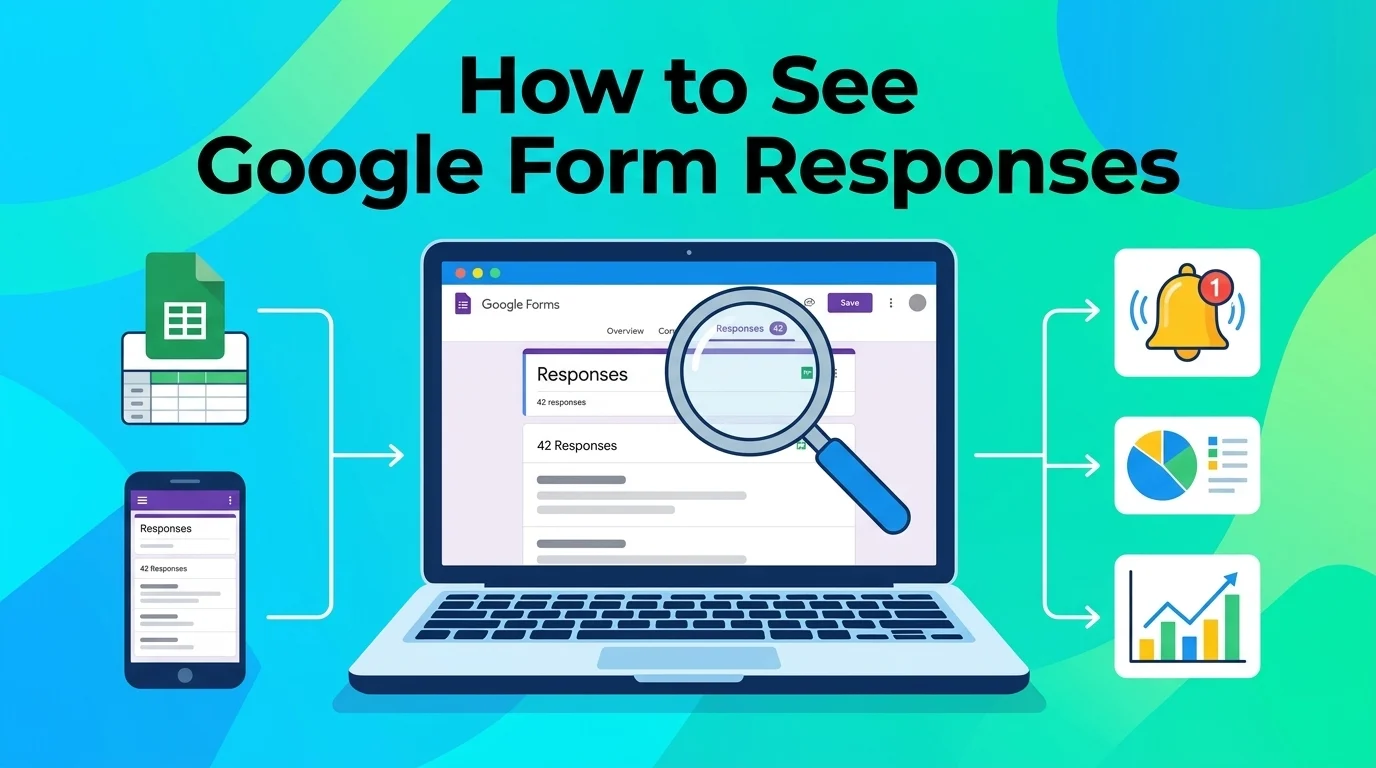
To see Google Form responses, open your form, click the “Responses” tab, and view answers in Summary, Question, or Individual view. You can also link responses to Google Sheets for deeper analysis. Check the Responses tab, Link to Sheets, Use Individual view, Enable email notifications, Export as CSV, Check mobile app, Share with collaborators.
You just sent out a Google Form. Maybe it’s for event sign-ups, a survey, or collecting your crush’s favorite pizza toppings. Now what? You’re refreshing your inbox like it’s a text from your situationship, waiting for those sweet, sweet responses to roll in.
Here’s the thing: Google Forms doesn’t exactly scream “hey, look at your answers!” It’s a bit like a ninja, quietly collecting data while you wonder if anyone actually filled it out. Learning how to see Google Form responses is a game-changer, whether you’re a teacher tracking quizzes, a small business owner gathering feedback, or a student collecting group project preferences.
The right approach saves you time, keeps your data organized, and makes you look like the spreadsheet wizard everyone wishes they could be. Let’s dive in.
How to See Google Form Responses in the Responses Tab
- Open your form and click the “Responses” tab at the top
Example: When you first create a form and want a quick overview of who submitted answers, this is your starting point.
Meaning: The Responses tab is your home base for all things submission-related. - Toggle between Summary, Question, and Individual views
Example: You want to see overall trends, so you switch to Summary view for those colorful charts.
Meaning: Different views give you different angles on your data. - Check the Summary view for instant visual insights
Example: You need to present survey results in a meeting and want pie charts without extra work.
Meaning: Summary view turns raw numbers into easy-to-read graphics. - Use Question view to see all answers to a specific question
Example: You’re curious what everyone said about their favorite movie genre.
Meaning: Question view groups responses by individual questions for focused analysis. - Switch to Individual view to see one person’s full submission
Example: You need to follow up with a specific respondent and want to review their answers first.
Meaning: Individual view shows each person’s complete response in one place. - Look for the response count at the top of the Responses tab
Example: You sent the form to 50 people and want to know how many actually replied.
Meaning: The count gives you a quick pulse on participation. - Click the three dots menu for more options like downloading responses
Example: You need to share data with your boss who prefers Excel files.
Meaning: The menu unlocks extra features like export and print. - Enable “Accepting responses” toggle to control submissions
Example: You’ve collected enough answers and want to close the form.
Meaning: This toggle lets you pause or resume response collection anytime. - Turn on email notifications for new responses
Example: You want to know immediately when someone fills out your form.
Meaning: Notifications keep you in the loop without constant checking. - Select “View in Sheets” to open responses in Google Sheets
Example: You need to sort, filter, or analyze data beyond what Forms offers.
Meaning: Sheets integration supercharges your data game. - Check the form’s linked spreadsheet for real-time updates
Example: You’re running a raffle and want to see entries as they come in.
Meaning: The linked sheet updates automatically with every new response. - Use the “Print all responses” option for a physical copy
Example: You need to bring printed feedback to an offline meeting.
Meaning: Printing gives you a tangible record of all submissions.
How to See Google Form Responses on Mobile
- Open the Google Forms app on your phone
Example: You’re on the go and want to check responses from your phone.
Meaning: The mobile app lets you access responses anywhere. - Tap your form and look for the Responses tab at the bottom
Example: You just got a notification and want to see the latest answer.
Meaning: Mobile layout puts the Responses tab within easy reach. - Swipe through Summary view for a quick glance
Example: You’re waiting in line and want a fast update on submissions.
Meaning: Mobile Summary view is perfect for quick checks. - Tap Individual to see specific responses on your phone
Example: You need to review a respondent’s answers while commuting.
Meaning: Individual view works smoothly on mobile screens. - Use the share icon to send responses to yourself via email
Example: You want to review responses later on your laptop.
Meaning: Sharing keeps your data accessible across devices. - Check the Google Sheets app for linked response data
Example: You prefer analyzing data in Sheets but only have your phone.
Meaning: The Sheets app syncs with your form for mobile analysis. - Enable mobile notifications for instant response alerts
Example: You’re running a flash survey and need real-time updates.
Meaning: Notifications on mobile keep you informed instantly. - Pinch and zoom on charts in Summary view
Example: You want a closer look at a specific data point.
Meaning: Zooming helps you read details on smaller screens. - Long-press a response to copy text
Example: You need to paste a respondent’s answer into a message.
Meaning: Copying saves time when sharing specific feedback. - Use the back arrow to return to your forms list
Example: You’re done checking responses and want to switch to another form.
Meaning: Easy navigation keeps your workflow smooth. - Toggle between forms using the hamburger menu
Example: You manage multiple forms and need to check each one.
Meaning: The menu lets you switch forms quickly. - Update the app regularly for the latest features
Example: You want access to new response viewing tools as they roll out.
Meaning: Updates ensure you’re not missing out on improvements.
How to See Google Form Responses in Google Sheets
- Open your form and click “Responses,” then the green Sheets icon
Example: You want to analyze responses with formulas and pivot tables.
Meaning: Linking to Sheets creates a powerful data hub. - Choose “Create a new spreadsheet” or “Select existing spreadsheet”
Example: You already have a master sheet and want to add form responses there.
Meaning: This choice determines where your data lives. - Watch responses appear in real-time as they’re submitted
Example: You’re monitoring a live event registration and need instant updates.
Meaning: Real-time syncing keeps your data current. - Use column headers to identify each question
Example: You need to know which column holds email addresses.
Meaning: Headers make your data easy to navigate. - Apply filters to sort responses by date, name, or answer
Example: You want to see the most recent submissions first.
Meaning: Filters help you find specific responses fast. - Create pivot tables for advanced analysis
Example: You need to cross-reference answers to find patterns.
Meaning: Pivot tables turn raw data into actionable insights. - Use conditional formatting to highlight key answers
Example: You want “Yes” responses to stand out in green.
Meaning: Formatting makes important data pop visually. - Share the spreadsheet with collaborators
Example: Your team needs to review responses together.
Meaning: Sharing enables collaborative data review. - Set up notifications for spreadsheet changes
Example: You want an email when someone new submits the form.
Meaning: Alerts keep you updated without constant checking. - Download the sheet as Excel, CSV, or PDF
Example: You need to send data to someone who doesn’t use Google.
Meaning: Exporting makes your data portable. - Freeze the header row for easier scrolling
Example: You have hundreds of responses and want to keep headers visible.
Meaning: Freezing rows improves navigation in large datasets. - Use the “Form” menu in Sheets to unlink or relink responses
Example: You accidentally linked the wrong sheet and need to fix it.
Meaning: Managing links keeps your data organized.
How to See Google Form Responses for Quizzes
- Open your quiz form and go to the Responses tab
Example: You’re a teacher who just gave a pop quiz and want to see scores.
Meaning: Quiz responses include grading data automatically. - Check the “Scores” section for automatic grading results
Example: You enabled quiz mode and want to see who passed.
Meaning: Google Forms grades multiple-choice and checkbox questions for you. - Review “Frequently Missed Questions” for teaching insights
Example: You want to know which topic confused most students.
Meaning: This feature highlights areas needing review. - Click Individual view to see each student’s answers and score
Example: You need to provide personalized feedback.
Meaning: Individual view shows correct and incorrect answers side by side. - Enable “Release grades” to share scores with respondents
Example: You want students to see their results immediately.
Meaning: Releasing grades automates feedback delivery. - Use “Answer Key” settings to adjust point values
Example: You realize a question should be worth more points.
Meaning: Adjusting points ensures fair grading. - Check “Email results” settings to send scores automatically
Example: You want students to receive their grades via email.
Meaning: Automated emails save you manual work. - Review the “Insights” tab for question-level analytics
Example: You want to see the percentage of correct answers per question.
Meaning: Insights help you improve future quizzes. - Export quiz results to Sheets for report cards
Example: You need to compile grades for parent-teacher conferences.
Meaning: Sheets export makes grade compilation easy. - Use “Feedback” settings to add explanations for answers
Example: You want students to learn from their mistakes.
Meaning: Feedback turns quizzes into learning opportunities. - Check the timestamp to see when each quiz was submitted
Example: You suspect someone submitted after the deadline.
Meaning: Timestamps provide accountability. - Share quiz results with co-teachers or administrators
Example: You need to collaborate on student assessments.
Meaning: Sharing enables team-based education.
How to See Google Form Responses for Surveys
- Open your survey and navigate to the Responses tab
Example: You just ran a customer satisfaction survey.
Meaning: The Responses tab is your survey command center. - Use Summary view to see response percentages at a glance
Example: You want to know what percentage of customers rated you 5 stars.
Meaning: Summary view visualizes survey data instantly. - Check Question view to dive into specific survey questions
Example: You’re curious what people said about your customer service.
Meaning: Question view isolates individual survey items. - Look for “Average” and “Median” stats for rating questions
Example: You used a 1-10 scale and want the average score.
Meaning: These stats summarize numerical responses. - Review open-ended answers in Individual view
Example: You want to read full text responses to “Any suggestions?”
Meaning: Individual view shows detailed written feedback. - Use Sheets to categorize responses by demographics
Example: You want to compare answers from different age groups.
Meaning: Sheets lets you segment survey data. - Enable “Response validation” to ensure clean data
Example: You want to prevent duplicate or incomplete submissions.
Meaning: Validation improves survey data quality. - Set up “Response receipts” for respondents
Example: You want participants to get a copy of their answers.
Meaning: Receipts add transparency to your survey process. - Check the “Accepting responses” status to close the survey
Example: You’ve hit your target sample size.
Meaning: Closing prevents unwanted extra submissions. - Export survey data for statistical software
Example: You need to run regression analysis in SPSS.
Meaning: Exporting enables advanced analytics. - Share survey results with stakeholders
Example: Your boss wants to see customer feedback trends.
Meaning: Sharing keeps everyone informed. - Archive old survey responses for future reference
Example: You want to compare this year’s results to last year’s.
Meaning: Archiving preserves historical data.
How to See Google Form Responses as a Collaborator
- Ask the form owner to add you as an editor
Example: Your teammate created a form and needs your help reviewing responses.
Meaning: Editor access lets you see and manage responses. - Check your email for the collaboration invite
Example: You received a notification that you’ve been added to a form.
Meaning: Accepting the invite grants you access. - Open the shared form from Google Drive
Example: You want to check responses on a form you didn’t create.
Meaning: Drive is your gateway to shared forms. - Navigate to the Responses tab like you would on your own form
Example: You’re helping analyze data and need to see submissions.
Meaning: Collaborators have the same response-viewing abilities. - Use the “Add collaborators” option to invite others
Example: You need more team members to help review responses.
Meaning: Expanding access streamlines teamwork. - Check permissions settings to control who sees what
Example: You want some collaborators to view but not edit.
Meaning: Permissions keep your data secure. - Leave comments on specific responses for team discussion
Example: You want to flag an interesting answer for your colleague.
Meaning: Comments enable async collaboration. - Export responses to share with collaborators outside Google
Example: Your external partner needs the data but doesn’t use Google.
Meaning: Exporting bridges platform gaps. - Set up a shared spreadsheet for collaborative analysis
Example: Your team wants to work on the same dataset simultaneously.
Meaning: Shared Sheets enable real-time teamwork. - Use version history to track changes
Example: You want to see who edited the spreadsheet and when.
Meaning: Version history provides an audit trail. - Remove collaborators when the project ends
Example: The survey is complete and you want to revoke access.
Meaning: Cleaning up permissions protects data. - Communicate with collaborators via Google Chat or email
Example: You need to discuss response trends with your team.
Meaning: Communication keeps collaboration smooth.
How to See Google Form Responses for Event Registrations
- Open your registration form and click Responses
Example: You’re organizing a workshop and want to see who signed up.
Meaning: Responses show you your attendee list. - Check Individual view to see each registrant’s details
Example: You need names, emails, and dietary preferences.
Meaning: Individual view compiles each person’s info. - Export to Sheets to create a master attendee list
Example: You want to sort registrants alphabetically.
Meaning: Sheets makes list management easy. - Use filters to find registrants by session or time slot
Example: You offered multiple workshop times and need to sort attendees.
Meaning: Filters help you organize by category. - Check the timestamp to see registration order
Example: You have limited spots and want to prioritize early birds.
Meaning: Timestamps establish first-come, first-served order. - Enable “Response receipts” so registrants get confirmation
Example: You want attendees to have proof of registration.
Meaning: Receipts reduce confusion and no-shows. - Set up email notifications for new registrations
Example: You want to know immediately when someone signs up.
Meaning: Notifications keep you updated in real-time. - Use Sheets to send confirmation emails via add-ons
Example: You want to automate confirmation messages.
Meaning: Add-ons like Form Mule streamline communication. - Check for duplicate registrations
Example: You suspect someone signed up twice.
Meaning: Reviewing responses helps you spot duplicates. - Export the attendee list for check-in purposes
Example: You need a printed list for the event door.
Meaning: Exporting creates a practical check-in tool. - Share the attendee list with co-organizers
Example: Your team needs to know who’s coming.
Meaning: Sharing keeps everyone prepared. - Archive registration data after the event
Example: You want to reference attendees for future events.
Meaning: Archiving preserves valuable contact info.
How to See Google Form Responses for Feedback Collection
- Open your feedback form and go to Responses
Example: You just ran a post-event feedback survey.
Meaning: Responses show you what people really thought. - Use Summary view to see overall satisfaction trends
Example: You want to know if most people enjoyed the event.
Meaning: Summary view highlights general sentiment. - Check Question view for specific feedback areas
Example: You want to see comments about the venue vs. the speaker.
Meaning: Question view isolates different feedback categories. - Read open-ended responses in Individual view
Example: You want detailed suggestions for improvement.
Meaning: Individual view captures nuanced opinions. - Look for patterns in negative feedback
Example: Multiple people mentioned the same issue.
Meaning: Patterns reveal areas needing attention. - Export to Sheets to categorize feedback by theme
Example: You want to group comments into “logistics,” “content,” and “venue.”
Meaning: Sheets enables thematic analysis. - Share positive feedback with your team
Example: You want to boost morale with nice comments.
Meaning: Sharing highlights wins. - Use feedback to create an action plan
Example: You want to address recurring complaints.
Meaning: Responses inform future improvements. - Thank respondents via email for their input
Example: You want to show appreciation for their time.
Meaning: Gratitude encourages future participation. - Compare feedback across multiple events
Example: You want to track improvement over time.
Meaning: Historical comparison shows progress. - Enable anonymous responses for honest feedback
Example: You want people to feel safe sharing criticism.
Meaning: Anonymity increases response authenticity. - Set a response deadline to close feedback collection
Example: You need to start analyzing data by a certain date.
Meaning: Deadlines keep your project on track.
How to See Google Form Responses for Lead Generation
- Open your lead capture form and check Responses
Example: You ran a webinar and collected emails for follow-up.
Meaning: Responses are your new leads list. - Export to Sheets to create a CRM-ready dataset
Example: You want to import leads into your CRM software.
Meaning: Sheets export formats data for easy transfer. - Check for complete contact information
Example: You need valid emails for your newsletter.
Meaning: Reviewing responses ensures data quality. - Use filters to segment leads by interest or company size
Example: You want to target enterprise vs. small business leads differently.
Meaning: Segmentation personalizes your outreach. - Set up notifications for high-value leads
Example: Someone from a Fortune 500 company filled out your form.
Meaning: Alerts let you respond quickly to big opportunities. - Use Sheets add-ons to enrich lead data
Example: You want to append company info to email addresses.
Meaning: Enrichment adds valuable context to leads. - Share leads with your sales team
Example: Your sales reps need contact info for follow-up.
Meaning: Sharing accelerates the sales pipeline. - Track conversion rates from form to sale
Example: You want to know how many leads became customers.
Meaning: Tracking measures form effectiveness. - A/B test different form versions
Example: You want to see which headline gets more submissions.
Meaning: Testing optimizes lead capture. - Add hidden fields to track lead sources
Example: You want to know which marketing channel drove each lead.
Meaning: Source tracking informs marketing strategy. - Archive old leads for future campaigns
Example: You want to re-engage past prospects.
Meaning: Archiving preserves valuable contacts. - Regularly clean your lead list for accuracy
Example: You want to remove bounced emails.
Meaning: List hygiene improves email deliverability.
How to See Google Form Responses for Customer Satisfaction
- Open your CSAT form and navigate to Responses
Example: You just sent a post-purchase satisfaction survey.
Meaning: Responses reveal how happy customers are. - Check the average score for rating questions
Example: You used a 1-5 star scale and want the mean score.
Meaning: Averages summarize overall satisfaction. - Review NPS (Net Promoter Score) if you asked “Would you recommend us?”
Example: You want to calculate your NPS from responses.
Meaning: NPS is a key customer loyalty metric. - Read verbatim comments in Individual view
Example: You want to understand why someone gave a low score.
Meaning: Comments provide context behind ratings. - Use Sheets to segment satisfaction by customer type
Example: You want to compare new vs. returning customer happiness.
Meaning: Segmentation reveals patterns. - Set up alerts for low satisfaction scores
Example: Someone rated you 1 star and you want to follow up.
Meaning: Alerts enable quick service recovery. - Share satisfaction trends with leadership
Example: You want to show the impact of recent improvements.
Meaning: Sharing data informs strategic decisions. - Track satisfaction over time with repeated surveys
Example: You want to see if changes improved happiness.
Meaning: Longitudinal data shows trends. - Thank customers for their feedback
Example: You want to show you value their opinions.
Meaning: Gratitude builds loyalty. - Use feedback to train customer service teams
Example: You want to address common complaints.
Meaning: Training improves future experiences. - Benchmark against industry standards
Example: You want to know if your scores are competitive.
Meaning: Benchmarking provides context. - Close the loop with unhappy customers
Example: You want to win back someone who had a bad experience.
Meaning: Follow-up can turn detractors into promoters.
How to See Google Form Responses for Job Applications
- Open your application form and check Responses
Example: You posted a job opening and collected resumes via a form.
Meaning: Responses are your applicant pool. - Export to Sheets to create an applicant tracking system
Example: You want to sort applicants by experience level.
Meaning: Sheets organizes candidate data. - Use filters to find candidates with specific skills
Example: You need someone who knows Python.
Meaning: Filters speed up candidate screening. - Check Individual view for each applicant’s full submission
Example: You want to review one person’s resume and cover letter.
Meaning: Individual view compiles all application materials. - Set up notifications for new applications
Example: You want to review candidates as they apply.
Meaning: Alerts keep your hiring pipeline moving. - Share applications with hiring managers
Example: Your team needs to review candidates together.
Meaning: Sharing enables collaborative hiring. - Use Sheets to track application status
Example: You want to mark candidates as “reviewed,” “interviewed,” or “rejected.”
Meaning: Status tracking streamlines hiring. - Check for incomplete applications
Example: Some applicants may have missed required fields.
Meaning: Reviewing ensures you have all needed info. - Export applicant data for HR systems
Example: You need to upload candidates to your ATS.
Meaning: Exporting bridges tools. - Schedule interviews directly from Sheets
Example: You want to book interview slots efficiently.
Meaning: Integration saves time. - Archive applicant data for future openings
Example: A great candidate wasn’t right for this role but might be for another.
Meaning: Archiving preserves talent pipeline. - Send automated rejection or acknowledgment emails
Example: You want to keep candidates informed.
Meaning: Communication protects your employer brand.
How to See Google Form Responses for Classroom Assignments
- Open your assignment form and go to Responses
Example: You assigned a homework submission form to students.
Meaning: Responses show you who submitted. - Check Individual view to see each student’s work
Example: You want to review one student’s essay.
Meaning: Individual view compiles their full submission. - Use Question view to see all answers to one question
Example: You want to compare how different students answered.
Meaning: Question view enables quick comparison. - Export to Sheets to create a grade book
Example: You want to track scores across assignments.
Meaning: Sheets organizes grades. - Set up email notifications for new submissions
Example: You want to know when students turn in work.
Meaning: Alerts keep you updated. - Check timestamps for late submissions
Example: You have a deadline and want to see who was late.
Meaning: Timestamps provide evidence. - Use Sheets to calculate averages and totals
Example: You want to compute final grades.
Meaning: Formulas automate grading math. - Share feedback with students via email
Example: You want to provide personalized comments.
Meaning: Feedback supports learning. - Enable “Response receipts” for students
Example: Students want proof they submitted.
Meaning: Receipts reduce anxiety. - Archive submissions for parent conferences
Example: You want to show work samples during meetings.
Meaning: Archiving preserves student work. - Use forms for peer evaluations
Example: Students rate their group members’ contributions.
Meaning: Peer feedback adds perspective. - Close the form after the deadline
Example: You want to prevent late submissions.
Meaning: Closing enforces deadlines.
How to See Google Form Responses for RSVPs
- Open your RSVP form and click Responses
Example: You’re hosting a party and need a headcount.
Meaning: Responses show who’s coming. - Check Individual view for each guest’s details
Example: You need names and plus-one info.
Meaning: Individual view compiles guest info. - Export to Sheets for easy guest list management
Example: You want to sort guests by dietary restrictions.
Meaning: Sheets simplifies party planning. - Use filters to count yes, no, and maybe responses
Example: You want a quick tally of confirmed guests.
Meaning: Filters summarize RSVP status. - Set up notifications for new RSVPs
Example: You want to know immediately when someone responds.
Meaning: Alerts keep you updated. - Share the guest list with your co-host
Example: Your partner in party planning needs the list.
Meaning: Sharing enables teamwork. - Check for duplicate RSVPs
Example: Someone might have responded twice.
Meaning: Reviewing prevents double-counting. - Send reminder emails to non-responders
Example: You want to nudge people who haven’t RSVP’d.
Meaning: Reminders increase response rates. - Export the final guest list for check-in
Example: You need a printed list for the door.
Meaning: Exporting creates a practical tool. - Use Sheets to assign potluck dishes
Example: You want to avoid five people bringing chips.
Meaning: Coordination prevents duplication. - Track RSVPs over time to see trends
Example: Most people respond in the last few days.
Meaning: Trends help you plan future events. - Archive the guest list for thank-you notes
Example: You want to send post-party gratitude.
Meaning: Archiving preserves contact info.
How to See Google Form Responses for Voting and Polls
- Open your poll form and navigate to Responses
Example: You’re running a vote for team lunch spot.
Meaning: Responses show the results. - Check Summary view for a visual breakdown of votes
Example: You want to see which option is winning.
Meaning: Summary view displays vote counts clearly. - Use Question view to see individual vote selections
Example: You want to know who voted for what.
Meaning: Question view shows each person’s choice. - Enable “Limit to 1 response” to prevent double voting
Example: You want fair, one-person-one-vote results.
Meaning: Limiting responses ensures accuracy. - Check for tied results and plan a tiebreaker
Example: Two options have equal votes.
Meaning: Tiebreakers resolve deadlocks. - Export to Sheets for detailed vote analysis
Example: You want to cross-reference votes with voter demographics.
Meaning: Sheets enables deeper analysis. - Set a voting deadline and close the form
Example: You want to announce results at a specific time.
Meaning: Deadlines create urgency. - Share results with participants
Example: You want to announce the winning option.
Meaning: Sharing builds engagement. - Use anonymous responses for sensitive votes
Example: You want people to vote without fear of judgment.
Meaning: Anonymity encourages honesty. - Check timestamps to verify voting order
Example: You want to know who voted first in a tiebreaker.
Meaning: Timestamps provide objective data. - Archive poll results for future reference
Example: You want to remember what was decided.
Meaning: Archiving preserves decisions. - Use polls for quick team decisions
Example: You need to pick a meeting time that works for everyone.
Meaning: Polls streamline group choices.
Frequently Asked Questions
What does “how to see Google Form responses” mean?
It means learning where to find and view the answers people submit through your Google Form. Simple as that.
Can I see Google Form responses on my phone?
Yes! Use the Google Forms app or open the form in your mobile browser. The Responses tab works on mobile too.
How do I know if someone responded to my form?
Check the Responses tab for a count, or enable email notifications to get alerted instantly when someone submits.
Can I see who responded to my Google Form?
If your form collects email addresses, yes. If it’s anonymous, you’ll see responses but not who submitted them.
Is it possible to see responses in real-time?
Absolutely. Link your form to Google Sheets and watch responses appear as they’re submitted.
What if I accidentally deleted responses?
Check your Google Drive trash or the linked spreadsheet’s version history. You might be able to recover them.
Can I hide responses from collaborators?
Yes. Adjust sharing settings to control who can view or edit responses.
Conclusion
Learning how to see Google Form responses transforms you from a confused form creator into a data-savvy superstar. Whether you’re tracking RSVPs, grading quizzes, or analyzing customer feedback, knowing where to look and how to organize your data makes all the difference.
The Responses tab is your best friend. Google Sheets is your power-up. And those little notification settings? They’re your secret weapon for staying in the loop without constant refreshing.
